
How to create ‘Roles’
Roles are a group of permissions that the administrator of the program creates and assigns to the users they create to access the program. The role name is user-defined by the administrator. There is no limit to the number of role groups created. Once roles have been set up, the next step is to add the roles to the locations, then the roles can be assigned to the before adding users. This tutorial will show you how to create the roles and how to assign them to the users.
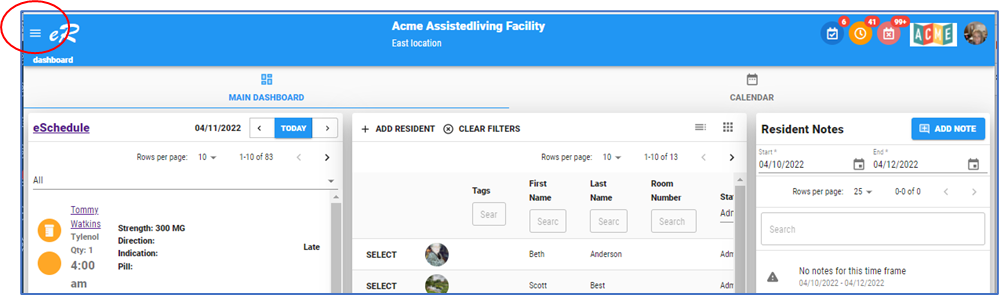
- Open the menu from the facility dashboard (three lines at the top left corner of the program), then scroll down the menu to ‘Administration -> Tenant
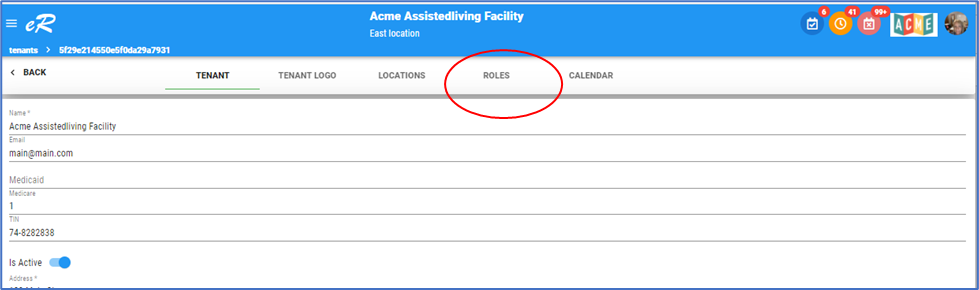
2. Open the tab 'Roles'

3. Click 'Create' button at add a new Role.

4. Enter a name for the role – such as ‘caregiver’, ‘nurse’, ‘facilityMgr’
5. Click on the ‘Permissions* field to open the list of possible permissions. NOTE: each task (residents, orders, notes, assessments, administration) has a read/update/delete permission. A user could have a read permission but not an update or delete permission and it would mean the user can read/view the record but make no edits or be able to delete.
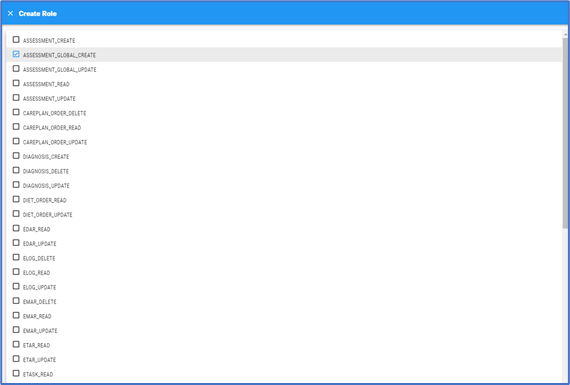
6. Select permissions by checking the boxes and then click the Save button when done.
By default your account will have one or more roles already set up. Roles can be edited, as necessary.
NEXT STEP – ASSIGN ROLES TO TENANT LOCATIONS
Each location has to have the Roles added in order for users to access the location.
HOW TO ADD ROLES TO LOCATIONS
- Navigate to menu Administration -> Tenant -> Roles
- The screen will show the Role on the left side of the screen and Location Roles on the right side of the screen.
- Click 'Add to add a Role to a location.
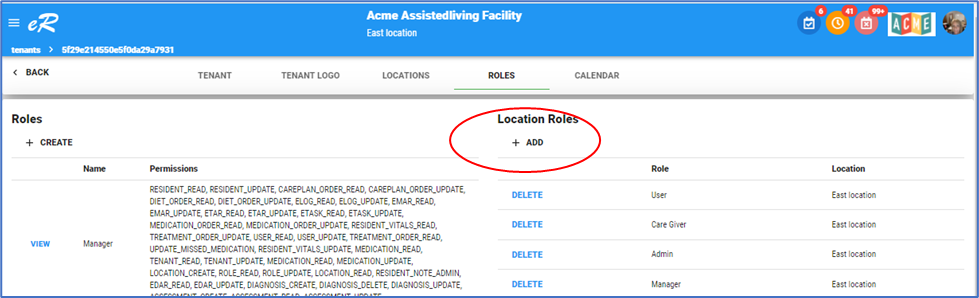

4. From the Role arrow, drop down the list of Roles and highlight one role at a time. Once highlighted the drop-down list closes.
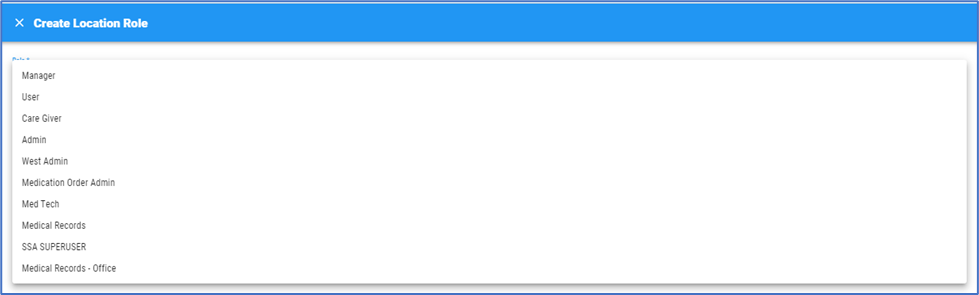

5. Click the Location arrow to drop down the list of locations. Highlight one location at a time. When you are done the list will look like above, where each role created is linked to a location