Open Menu...
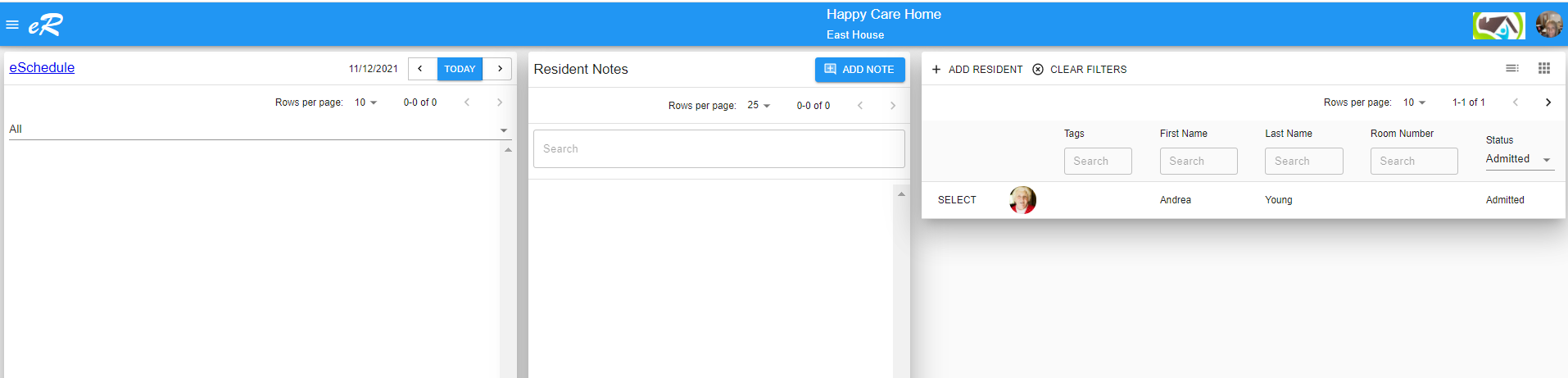 From the dashboard, click the three lines icon on the left top corner to open the facility menu and select User under the menu Administrator.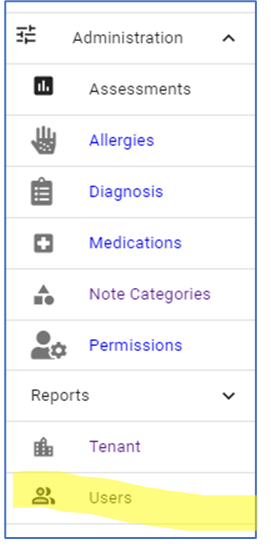
- The User screen opens. If users have been set up, they will appear on a list. To add a new user, click CREATE USER.
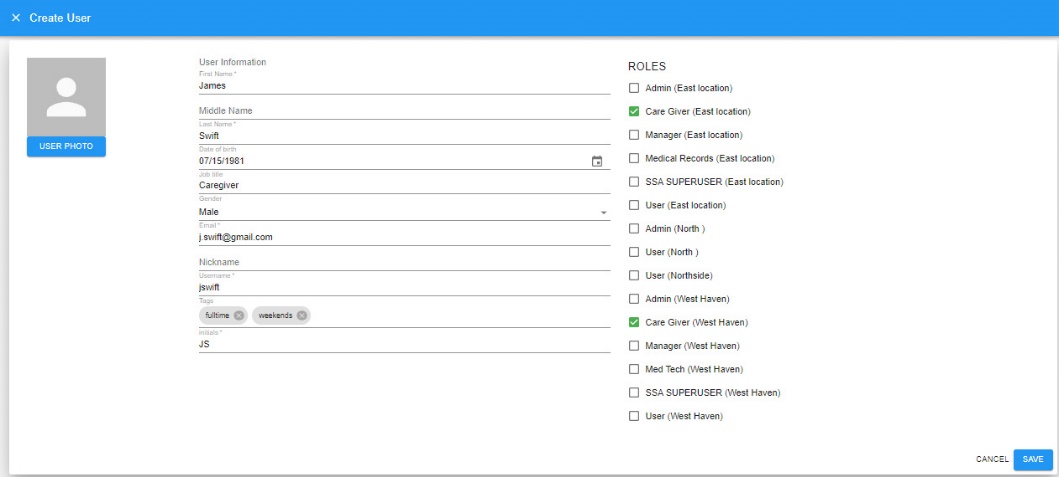
- Enter user information, all required fields will have an asterisk.
- Select a Role. NOTE: A Role is a set of permissions.
- Once a user has been set up and saved, an activation email and an email to set password will be sent to that email address.
Following are tips in completing the user screen:
- Email addresses have to be unique, no other user can be created with the same email address. To correct email addresses after saving a new user, you will need to remove the user from the user list by removing their 'Role'. Then create the user again, NOTE: when recreating a user, do not use the same username.
- Users will be able to log into the application using their 'Username' or 'Email Address' that they were set up with. When creating a username, you may want to use their first initial and their last name, or first name and last initial. If you need to change the 'Username'. You will need to remove the user from the list and create a new user to make a change to the username.
- Then create the user again, entering the correct username.
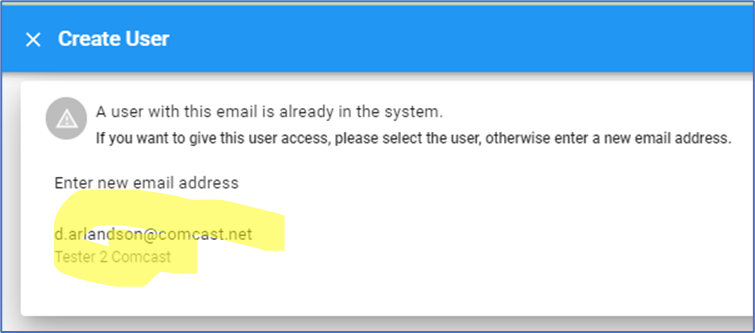
- When record is saved it will create a popup warning that there exists a user with the same email address. Click on the email address on the popup. The system will automatically save and send out emails.
- Assign the user one role per location (if you have multiple locations) – assign the role that will allow them to do their tasks. For example, if you have a caregiver that is also in charge of administering the program (setting up users, admitting residents, etc.) give that user the Admin Role.
TROUBLESHOOT LOGIN PROBLEMS: A new user is not able to log into the application. Below is a list of possible reasons why a user cannot log into eResidentCare, along with possible solutions:
1. User did not receive the 'Verify your Account' email. If a user did not receive the verification email they will not be able to log in. Some reasons for not receiving the email:
- The user's email was entered wrong when setting up the user. The solution is to remove the user with the wrong email and create a new user.
- If the email address was entered wrong, go to the User menu, find the user from the user list and open the user screen. NOTE: To open the user screen, click on the link which is the user's first name.
- Click on the tab 'ROLE' and uncheck the role(s) assigned to that user. The page automatically saves. Removing the roles will remove the user from the system.
- Go back to the user list and create a new user, usign the instructions above.
- The activation email and password email went to the users junk folder of their email program.
- To prevent emails from support@eresidentCare.com from going into your email program's junk folder, add support@eresidentCare.com as a contact
- User ignored the activation email. If the user ignored the activation email and responded only to the create password email, once they set their password and it has been accepted, they will receive an Authorize App popup that looks like the one below. Once they accept they will be able to log into the application.