
Overview
The Medication Inventory Management feature in eResidentCare helps facilities accurately track medication quantities, monitor refills, maintain controlled substance accountability, and document medication destruction activities.
As medications are administered through the eMAR, the system automatically deducts inventory and creates a detailed audit trail, helping staff maintain accurate counts and stay prepared for medication reviews, audits, and compliance inspections.
Key Features
Automated Pill Count Tracking
- Tracks pills, capsules, tablets, and other medication units.
- Automatically deducts inventory as medications are administered.
- Supports both staff-administered and self-administered medications, plus Refused + Destruction.
- Displays current quantity on hand.
Complete Audit Trail
Every inventory activity is recorded with:
- Date and time
- User performing the action
- Medication details
- Quantity affected
- Witness information (when applicable)
Activities tracked include:
- Medication administration
- Self-administration
- Refused medication + Destruction
- Discontinued medication disposal
- Inventory adjustments
- Refill additions
Inventory Activities Tracked
Medication Administration
When medication is administered from the eMAR:
- Inventory is automatically reduced.
- Date, time, and user are recorded.
Self-Administration
For self-administered medications:
- Inventory is automatically reduced.
- Administration details are recorded.
Refused Medications
If a medication is marked as refused + Destruction:
- The refusal is documented.
- Inventory activity is recorded.
Medication Destruction
Pills may be destroyed when:
- Medication is discontinued.
- Medication expires.
- Medication is damaged or otherwise unusable.
The system records:
- Date and time
- Quantity destroyed
- Reason for destruction
- User performing destruction
- Witness
Reports Available
Medication inventory reports are available from the Resident Medication Orders screen.
Current Medication Report
Provides current inventory information for active medication orders.
Controlled Substances Report
Includes:
- Medication Name
- Route
- Passing Quantity
- Quantity On Hand
- Refill Threshold Amount
- Low Inventory Indicator (Yes/No)
- Order Status
- Controlled Substance Type
- Last Inventory Activity
This report helps facilities monitor controlled medications and identify low inventory levels before medications run out.
Medication Destruction Report
Includes:
- Medication Name
- RX Number
- Quantity Ordered
- Disposal Date
- Quantity Destroyed
- Reason for Destruction
- Destroyed By
- Witness
Setting Up Inventory for a New Medication Order
When creating a new medication order:
Step 1 – Enable Inventory
- Create or edit a medication order.
- Open the Workflow Controls tab.
- Locate Define Administration and Inventory Behavior.
- Check the Enable Inventory box.
Once enabled, inventory setup fields will appear.
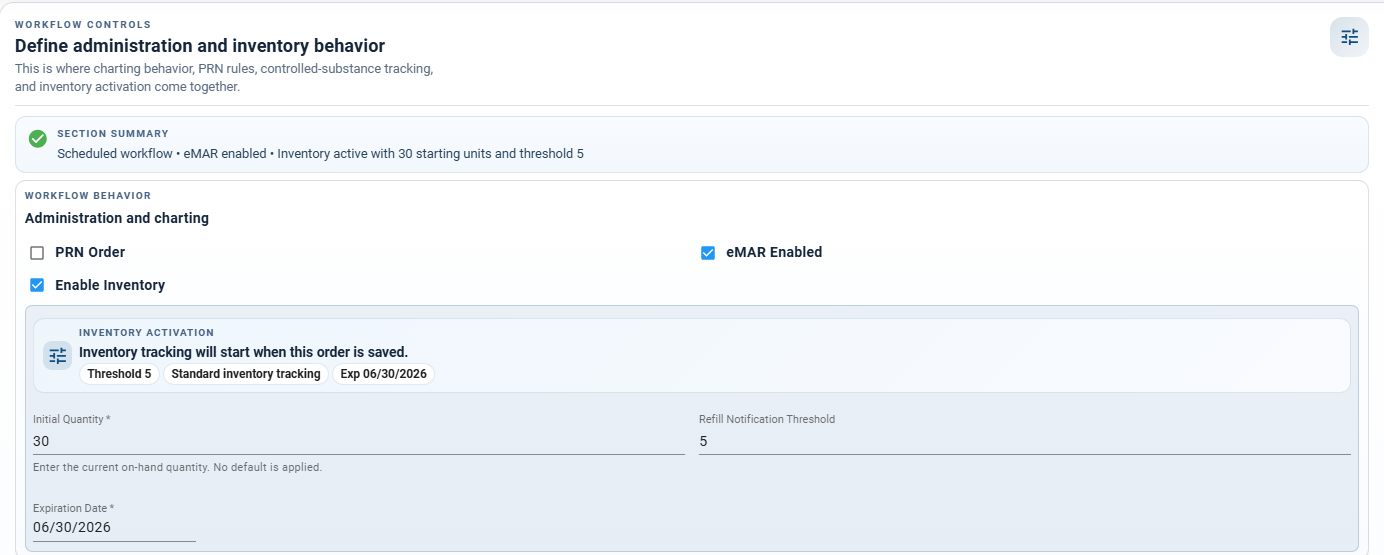
Step 2 – Enter Initial Quantity
Initial Quantity
Enter the starting quantity available for the medication order.
For a new medication order:
- Enter the total number of pills, capsules, or units received.
- Inventory tracking will begin using this quantity.
Examples
Medication | Quantity Received |
Acetaminophen 500mg | 30 tablets |
Vitamin D 1000 IU | 90 capsules |
Aspirin 81mg | 100 tablets |
Step 3 – Enter Expiration Date
Expiration Date
Enter the date through which inventory should be tracked.
Requirements:
- Must be a future date.
- Inventory deductions continue until this date is reached.
The system will continue deducting medication as doses are administered through the eMAR until the expiration date passes.
After the expiration date:
- Inventory deductions stop for that inventory count record.
- A new inventory count or refill should be entered if medication remains active.
Example
If an inventory count is created today with an expiration date of June 3, 2026, the system will continue deducting doses through June 3, 2026. After that date, inventory tracking for that count record will stop.
Tip
Setting the expiration date approximately 30 days in the future is a good practice. This allows staff to routinely verify and reconcile medication inventory counts.
Step 4 – Enter Refill Notification Threshold
Refill Notification Threshold
Enter the quantity at which the medication should be considered low inventory.
When inventory reaches this amount:
- A low inventory indicator appears on the medication order.
- Staff are alerted that a refill may be needed.
Example
Starting Quantity | Threshold |
30 tablets | 5 tablets |
90 capsules | 10 capsules |
Activating Inventory on an Existing Medication Order
If a medication order is already active and inventory tracking is being started later:
Step 1 – Open the Medication Order
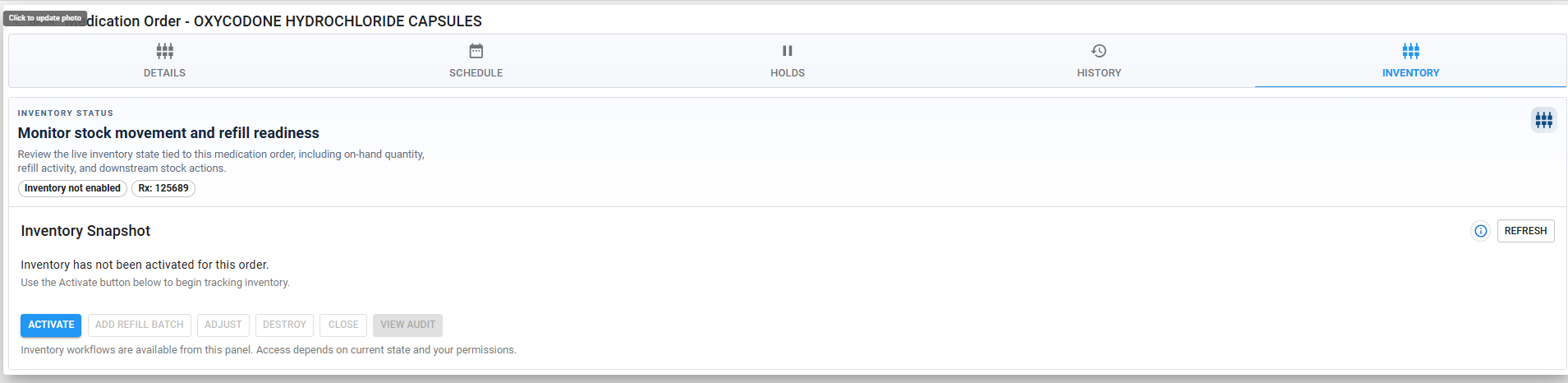
- Open the resident's medication order.
- Click the Inventory tab.
The Inventory tab displays the current inventory status.
Step 2 – Activate Inventory
- Click the blue Activate button.
- The Refill Modal opens.
Step 3 – Enter Inventory Information
Complete the inventory information:
- RX Number
- Quantity
- Expiration Date
- Refill Threshold
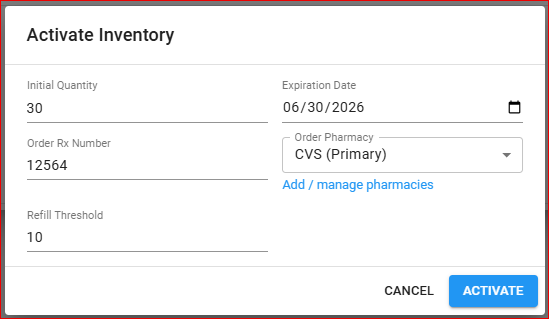
Quantity
Enter the number of pills, capsules, or units currently remaining on hand.
Step 4 – Enter Expiration Date
Enter the date through which inventory should be tracked.
Requirements:
- Must be a future date.
- Inventory deductions continue until the expiration date is reached.
Example
If an inventory count is created today with an expiration date of June 3, 2026, the system will continue deducting doses through June 3, 2026. After that date, inventory tracking for that count record will stop.
Tip
A 30-day expiration period is recommended to support routine inventory verification and reconciliation.
Managing Inventory and Refills
The Inventory tab serves as the central location for inventory management.
From this screen users can:
- View inventory status
- Add new refills
- Edit refill information
- Review inventory activity
- Monitor low inventory warnings
- Review quantity on hand
Each refill creates its own inventory record and audit history.
Audit Trail and Compliance
Every inventory transaction is permanently logged, including:
Refill Activity
- Date and time added
- User who entered the refill
- Quantity received
Medication Administration
- Date and time administered
- User administering medication
- Quantity deducted
Refusals
- Date and time
- User documenting refusal
Destruction Activity
- Date and time
- Quantity destroyed
- Reason
- User
- Witness
This comprehensive audit trail supports medication accountability, controlled substance monitoring, and regulatory compliance.
Benefits of Medication Inventory Management
✔ Automatically tracks medication counts
✔ Reduces manual inventory calculations
✔ Provides refill reminders before medications run out
✔ Maintains detailed audit trails
✔ Supports controlled substance accountability
✔ Tracks medication destruction with witness documentation
✔ Helps facilities prepare for inspections and audits
✔ Improves medication management accuracy across the organization
eResidentCare Medication Inventory Management helps facilities maintain accurate medication counts while providing the documentation and accountability required for safe medication administration and regulatory compliance.