
The System Care Plan feature allows your facility to create master templates for resident care plans. These templates can then be copied into resident records to save time, ensure consistency, and reduce errors.
Care Plan Template Permissions
To manage care plan templates, users must have the following permissions assigned:
CARE_PLAN_TEMPLATE_CREATE – create new templates
CARE_PLAN_TEMPLATE_DELETE – delete templates no longer needed
CARE_PLAN_TEMPLATE_PRINT – print a template for review or records
CARE_PLAN_TEMPLATE_READ – view existing templates
CARE_PLAN_TEMPLATE_UPDATE – edit/update templates
⚠️ If you do not have these permissions, contact your system administrator.
____________________________________________________________________________________________________________
Where to Find System Care Plans
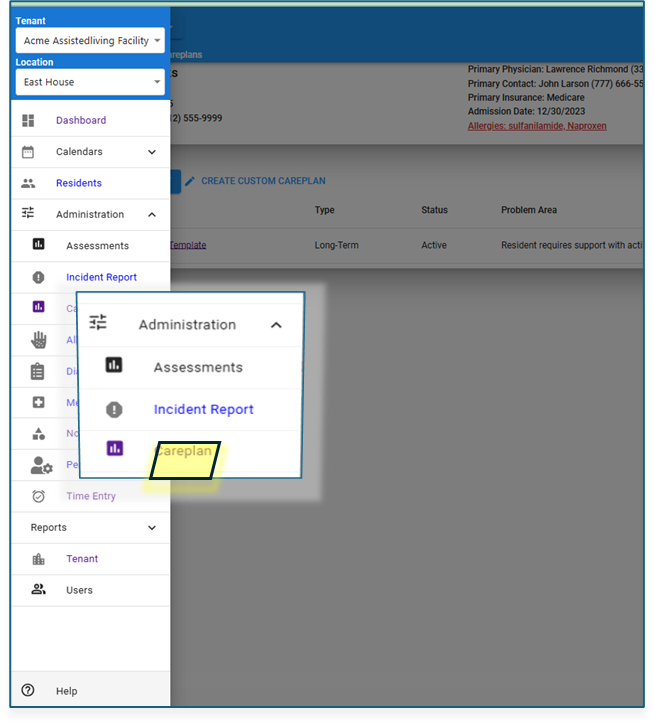
- Go to the Facility Administration menu.
- Select Careplan/ Careplan Library.
- Click Create New Template to begin.
Care Plan Template Details
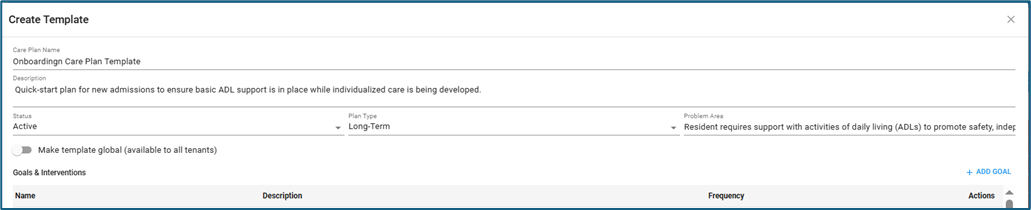
Care Plan Status
- Active – Available to use when creating resident care plans (default).
- In Progress – Draft mode; cannot be assigned to residents.
- Inactive – No longer in use but kept for reference.
Care Plan Type
Select the plan type that best describes the care plan:
- Short-Term
- Long-Term
- Rehabilitation
- Palliative
- Wellness
Problem Area
Add the reason for the care plan (e.g., diagnosis or condition that affects ADLs).
Goals
Each care plan can include multiple goals.
- Name – Short title (e.g., “Bathing”).
- Description – Detailed explanation and objectives.
Intervention

Goals can have multiple interventions that describe staff support.
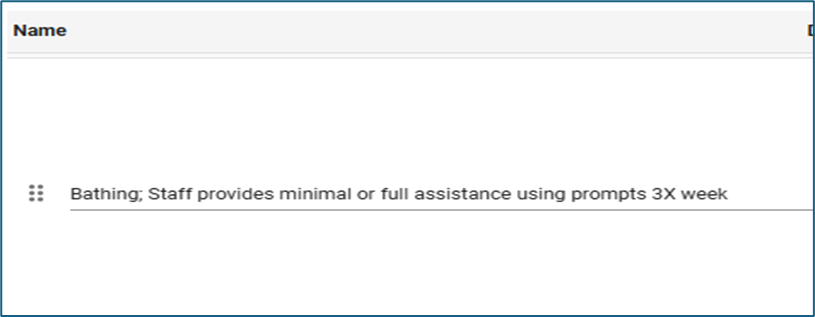
- Example: For “Bathing,” an intervention could be:
- “Staff provides minimal or full assistance using prompts 3X week.”
- Each intervention includes:
- Name
- Discipline (e.g., Nursing, Direct Care, Rehab)
- Frequency – Scheduled (daily, weekly, etc.) or PRN (as needed).
- eTask checkbox – If selected, the intervention will appear on the charting screens once copied to a resident.
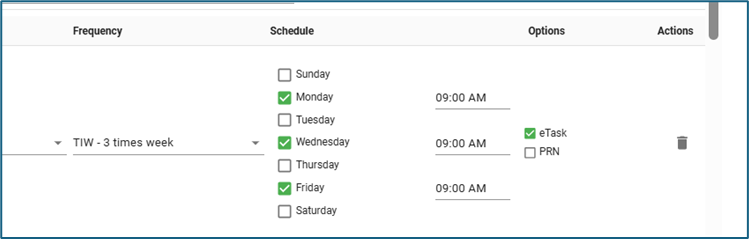
⚠️ Important:
If you set a frequency and time and check the eTask box in the care plan template, the intervention will automatically be scheduled and appear on the charting screen (eTask) for any resident assigned that care plan.
- Use this when you want consistent scheduling for all residents using the template.
- If you do not want automatic scheduling, leave the frequency/time blank and do not check eTask.
_____________________________________________________________________________________________________________________________________
Copying a Care Plan to a Resident
- Select a resident profile.
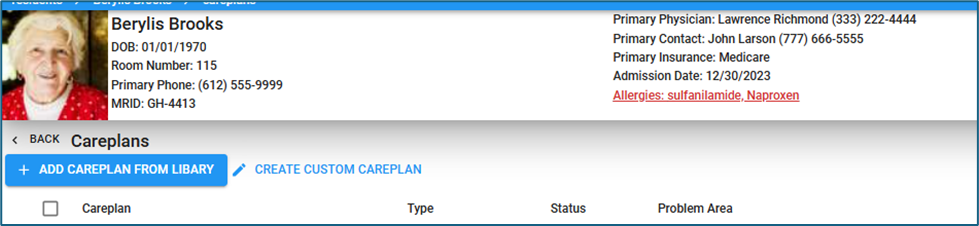
- Under the resident menu select Orders menu, choose Care Plans.
- You will see two options:
- Add Care Plan From Library – Use a System Care Plan template.
- Create Custom Care Plan – Build a resident-specific care plan from scratch.
- If copying from the library:
- Select the desired Active template.
- Review and edit goals or interventions as needed.
- Save
Scheduling and Charting
- Interventions scheduled in the template (with eTask checked) automatically copy to the resident’s charting schedule.
- Staff will see these interventions appear in their eTask screen for completion.
- This ensures care is delivered consistently and documentation is captured in real time.
Best Practices
- Keep templates set to Active only when finalized and ready for use.
- Use In Progress while drafting, and Inactive for outdated templates.
- Be intentional with scheduling:
- Use scheduled interventions for common, routine care.
- Leave interventions unscheduled if they vary by resident and should be customized after copying.
- Build a library of common templates to speed up new resident onboarding.