
Overview:
We have introduced a new feature to enhance the Incident Report process by providing a preset list of categories. This change ensures consistency and improves usability, especially on devices that don’t support creating categories on the fly.
What’s New?
- Preset Categories: You can now set up a predefined list of categories for Incident Reports.
- Administration Setup: Categories must be created under the Administration menu.
- New Dropdown Field: The Category field on the Incident Report entry screen now includes a dropdown for easy selection.
Why This Change?
Previously, users could create categories as needed while entering reports, but this caused issues on some devices. The new system eliminates that problem while ensuring all users follow a standardized process.
This feature streamlines the reporting process and helps maintain accurate, consistent records.
Incident Report Entry Screen:
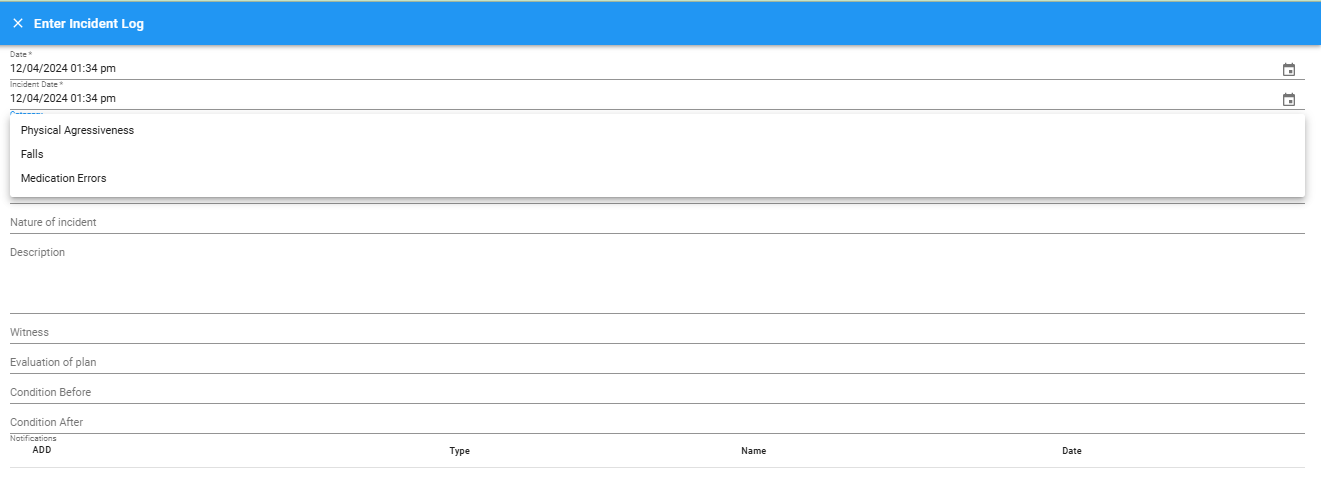
How to Setup Categories
Path [Administration -> Incident Report]

First Step:
Ensure the switch next to ‘Incident Report Categories (Select from the dropdown)’ is turned ON.
- If the switch is not showing blue, click on it to activate the feature.
- Once activated, you’ll be able to set up predefined categories and access the list when creating Incident Reports.
This step is crucial to enable the new dropdown functionality.
To Add a New Category:
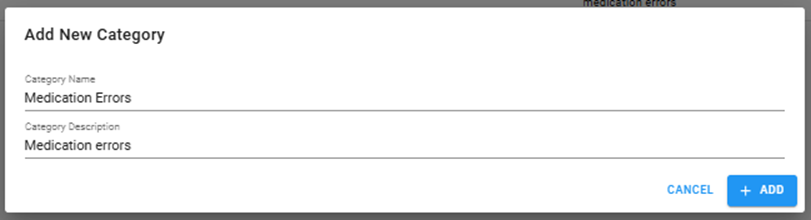
Click + ADD CATEGORY to open the dialog box and enter the category name and description. Sample below shows a category called Medication Errors.
Sort order of List
Sort the list of categories alphabethical or by eficiency-based with the most commonly used first
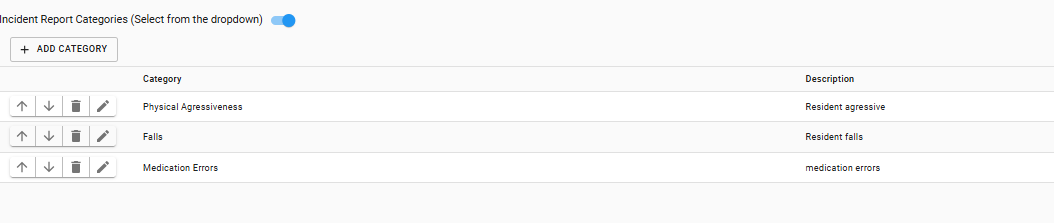
To adjust the order of categories, use the up and down arrows next to each category.
For example, to move the category ‘Physical Aggressiveness' to the top of the list:
- Click the up arrow next to ‘Physical Aggressiveness'.
- The category will move one line at a time with each click.
- Continue clicking the up arrow until the category reaches the desired position at the top.
This feature allows you to customize the list order for better efficiency or priority.
Using the categories when creating an Incident Report
Path [Resident -> eLOG -> Incident Report]
From the eLOG menu, select the Incident Report.
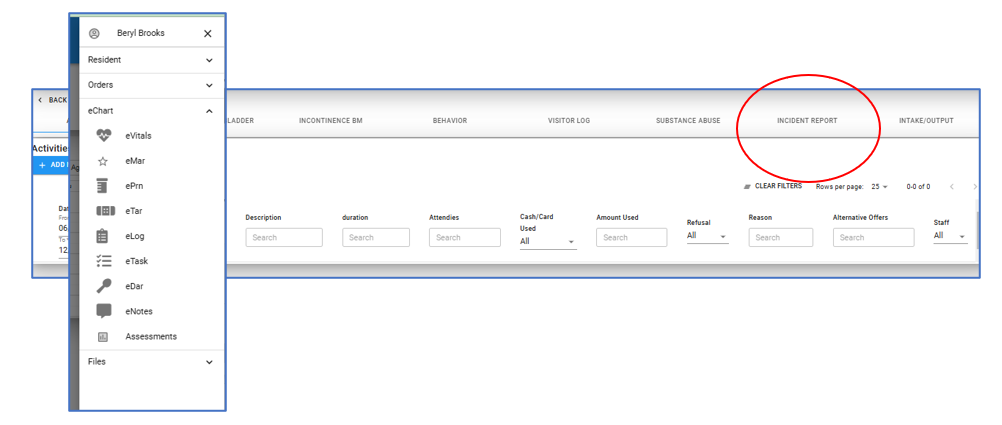
Click +ADD NEW LOG
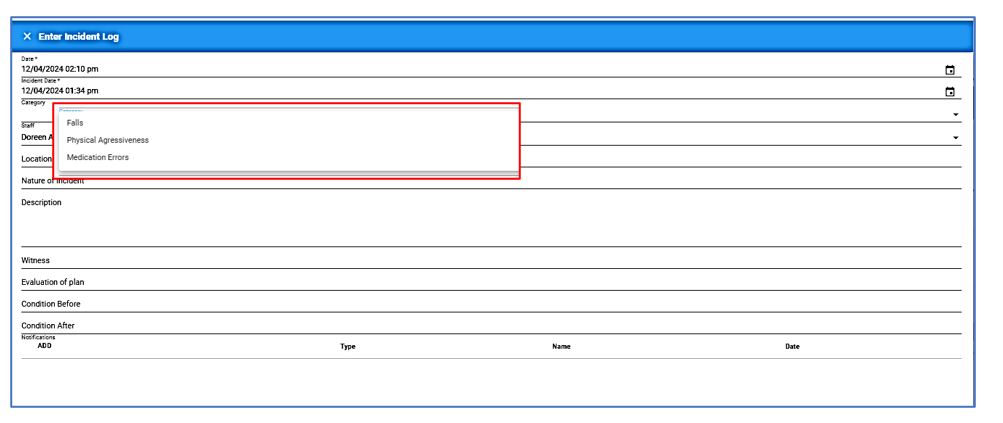
At the field ‘Category’, use the arrow to drop-down the category list.