
This feature allows you to set up custom responses to select when charting a resident’s care plan interventions/tasks that were scheduled under their Care Plan Order. This will enable more detailed assessments. For example, adding responses such as 1 Prompt or 2 Prompt can provide better documentation as to the intensity of services provided. Custom responses are set up under the Administration menu -> Careplan. The feature is permission based and you will need permissions in order to create, update, delete, read.
Setup: Creatitng the Responses:
Navigate to the Careplan menu. The Careplan menu is found under the Administration menu. When the Careplan screen opens, make sure the ‘Custom eTask Labels switch is blue (ON). If it is not enabled and color gray, click the switch to turn it on.
Make sure you have permissions; you will see the response list:
(If you do not see this list, contact the program admin about permissions for careplan responses.)
This feature allows you to set up custom responses to select when charting a resident’s care plan interventions/tasks that were scheduled under their Care Plan Order. This will enable more detailed assessments. For example, adding responses such as 1 Prompt or 2 Prompt can provide better documentation as to the intensity of services provided. Custom responses are set up under the Administration menu -> Careplan. The feature is permission based and you will need permissions in order to create, update, delete, read.
(If you do not see this list, contact the program admin about permissions for careplan responses.)
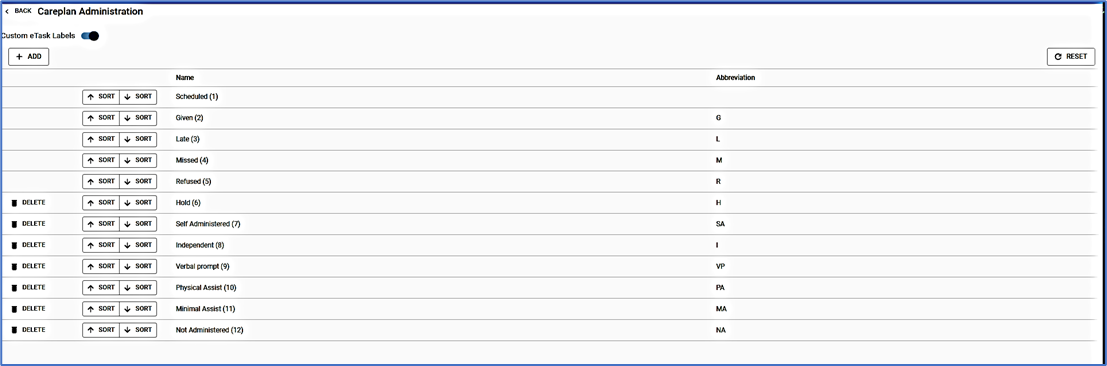


- Click ADD to recreate a new response.
- Popup screen opens. Enter a name. (Keep the name short.) Sample of names; 1 Prompt, 2 Prompt, Depressed, etc.
- Enter the abbreviation that will show on the Resident Task Log. The maximum character limit is two characters. For example, if you entered the response name as 1 Prompt, enter the abbreviation as 1P
- Click the ADD button to save.
 1.Use the Sort up arrow to move a response up the list.
2.Use the Sort down arrow to move the response down the list.* Note: The response will move up or down one click at a time.
* Note: The response will move up or down one click at a time.
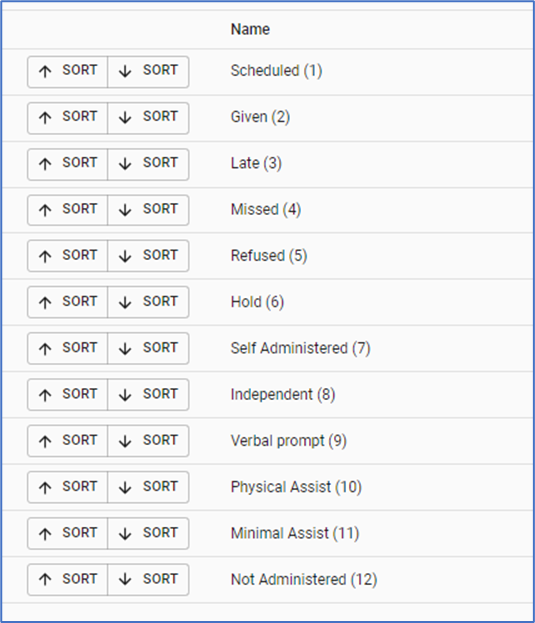



* Note: The response will move up or down one click at a time.
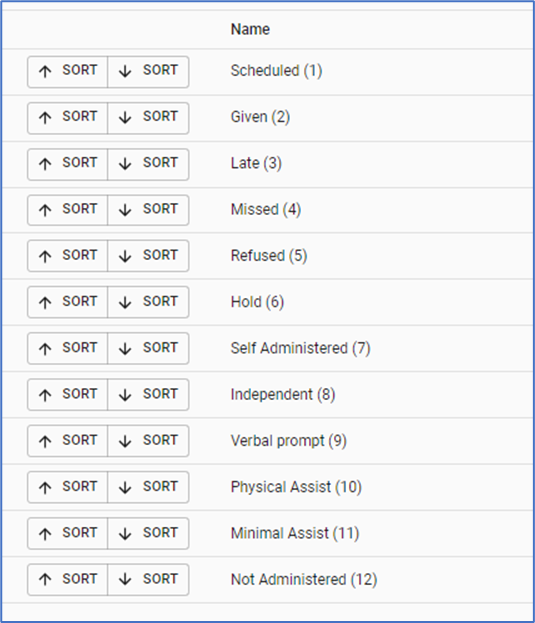

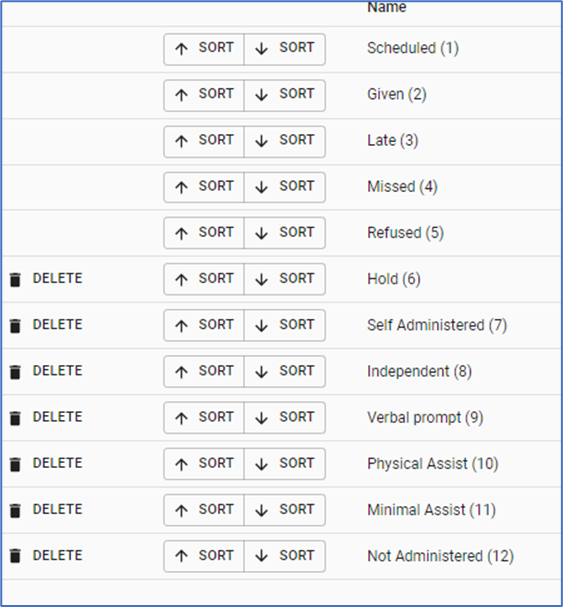
The Reset Button is located at the top right above the Abbreviation column. The Reset button allows you to revert to the last saved version of your list after making changes. If you've added or deleted but wish to discard those changes and return to the previously saved list, simply click the Reset button. This provides a convenient way to start over without having to manually undo each change.

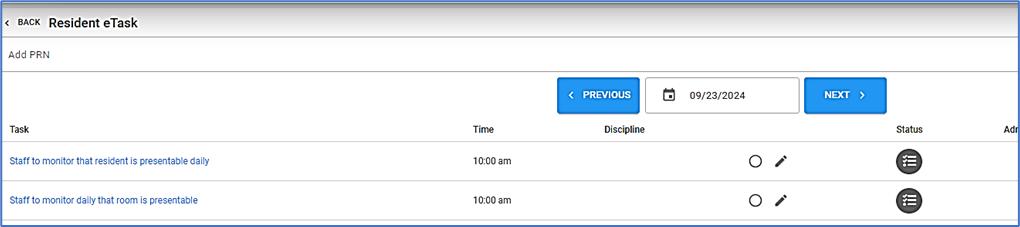
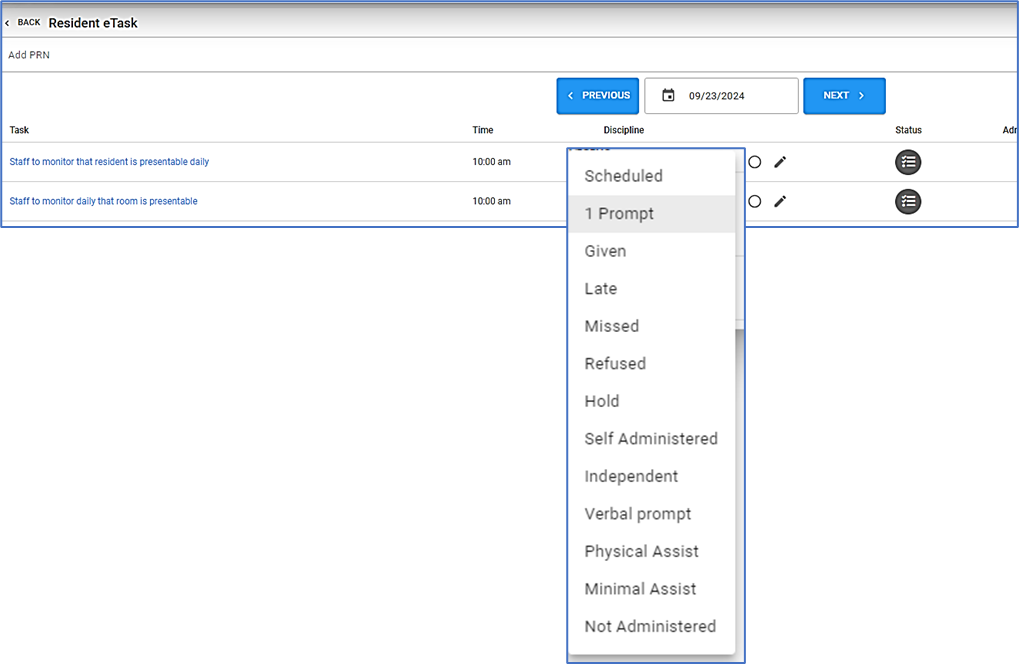
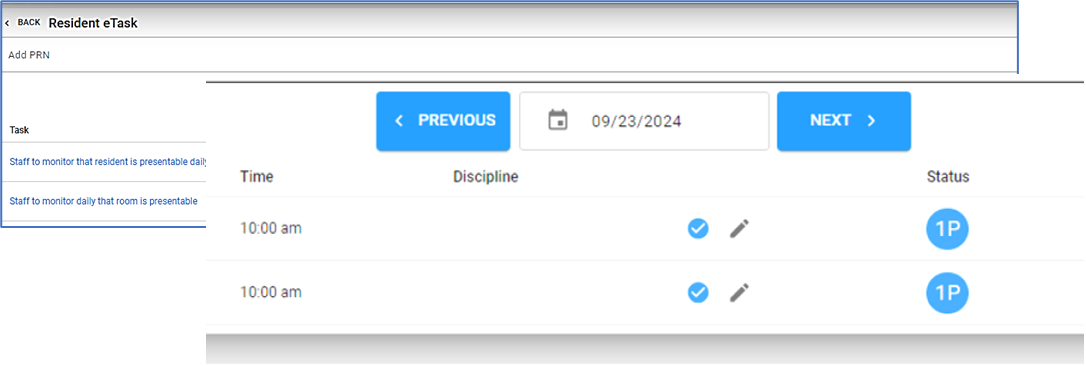

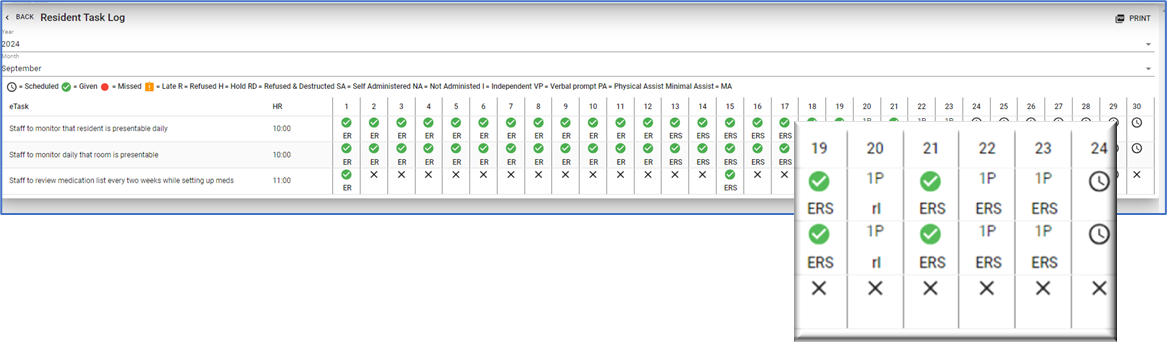
The Resident Task Log presents charting data in a monthly calendar format, providing a clear visual of the responses saved for each day. This gives an overview of the assistance provided to the resident and the outcomes. It serves as a valuable tool to quickly assess the resident's care history. To print the log, simply click the PRINT button, and all reports will be formatted as a PDF for easy sharing or record-keeping.