
How to Create an Incident Report for a Resident
From the Facility Dashboard
Start at the main facility dashboard.
Select the resident involved in the incident.
Open the Resident Dashboard
This will take you to the resident’s dashboard.
Access the Resident Menu
In the upper right corner, click the three lines (☰) menu icon.
Navigate to eChart
From the resident menu, select eChart.
Go to eLog
Under the eChart menu, select eLog.
The eLog menu has several screens.
Select Incident Report
From the eLog options, choose Incident Report.
This opens the screen where you can create and enter details of the incident report.
Path: [Resident -> eChart -> eLog -> Incident Report]

Click + ADD NEW LOG
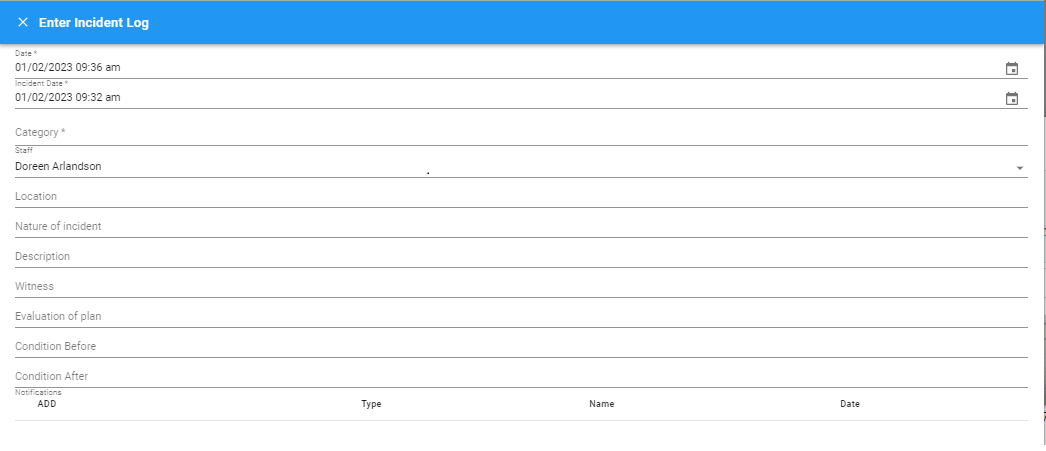
Use the calendars to enter dates and times.
All required fields have an *(asterisk) next to it.
The saved incident reports will be listed on the grid.
To Print: Each Incident Report created has a 'PRINT' button next to it
