
When you discharge a resident through eResidentCare a Discharge record is created, all current medication orders are discontinued, the current treatment orders, care plans and diets become inactive. All the future scheduled tasks are removed from the charting screens. NOTE: All charting prior to the discharge date/time will all be saved to history.
Follow the steps below to discharge a resident.
- Begin at the facility dashboard at the resident list to select the resident to be discharged.
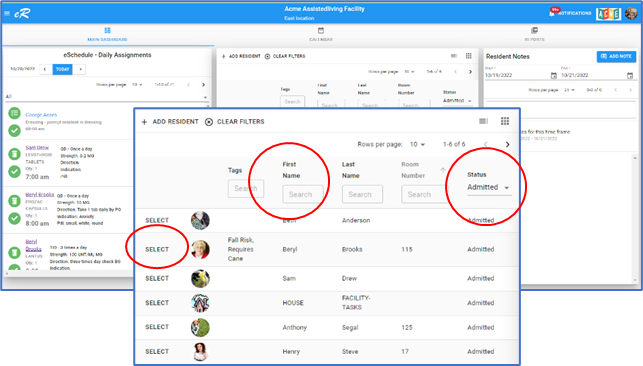
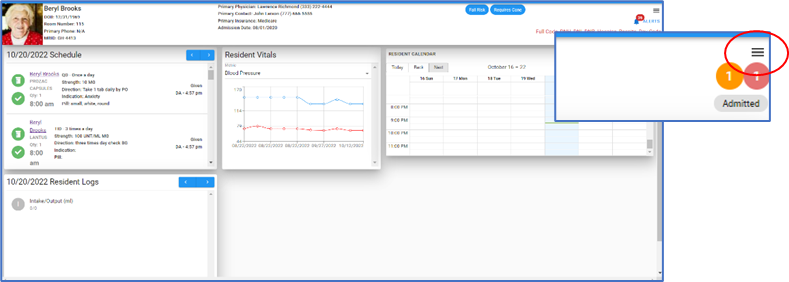
- Using the filters to search the resident list by name or their current status. Once found, click SELECT. This will open the resident dashboard. From the dashboard open the menu by clicking the three lines/hamburger icon found at the upper right corner of the screen.
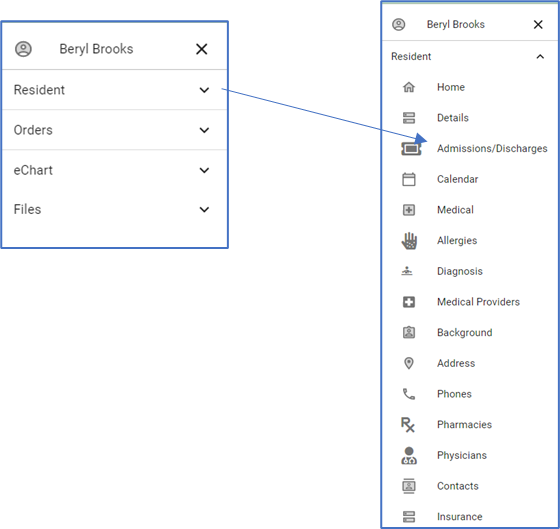
- This opens the menu. The menu is divided in four topics: Resident, Orders, eChart, Files. Select the Resident section and then Admissions/Discharges
- The screen opens to the ‘Current Admission Status’ this screen shows a graphical depiction of the resident’s history of admissions and discharges.

- Next to the tab ‘Current Admission Status’ is another tab ‘Admissions/Discharges’, click to open screen. The list of admission and discharge records are on this screen.

- Click the ‘Add’ to create a new Discharge record.
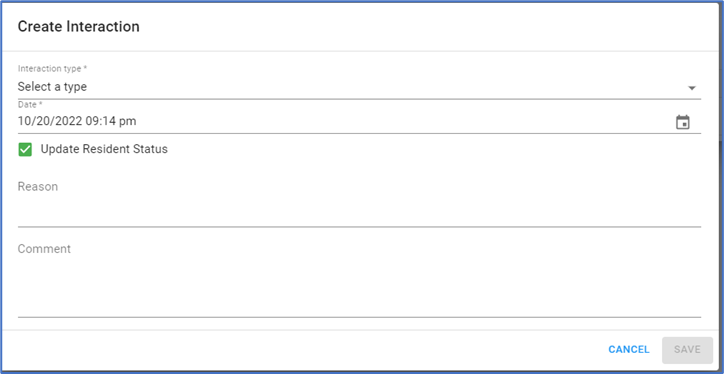
- Required fields have an *(Asterix) next to the field name.
- The first field is a dropdown, select ‘Discharge’.
- The date defaults to the current date and time, edit to correct the date and time of the discharge.
- Update Resident Status is by default checked, leave it checked. This updates the status on the resident header to ‘Discharged’.
- Enter the reason and comments. Click SAVE when done.