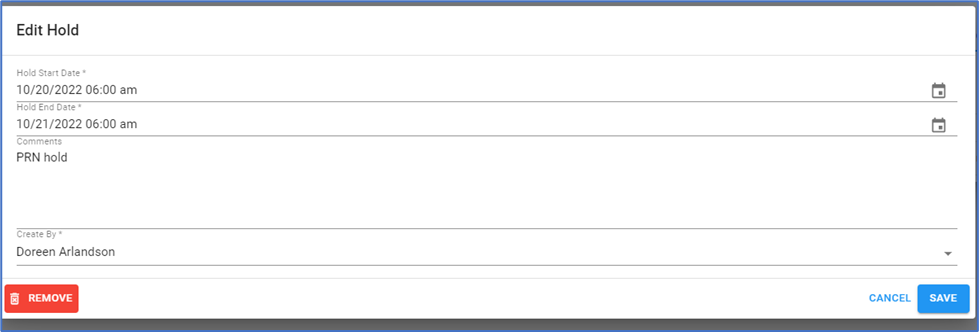
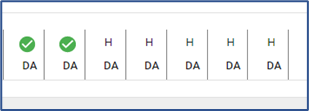
When a resident has a medication order that needs to be put on hold for a day or more you can create a HOLD record and this will flag the charting that the med is on hold so it staff knows not to administer. The MAR will show the days the medication is on hold as an ‘H’ along with the initials of the staff that put the medication on hold.
Follow the steps below to discharge a resident.
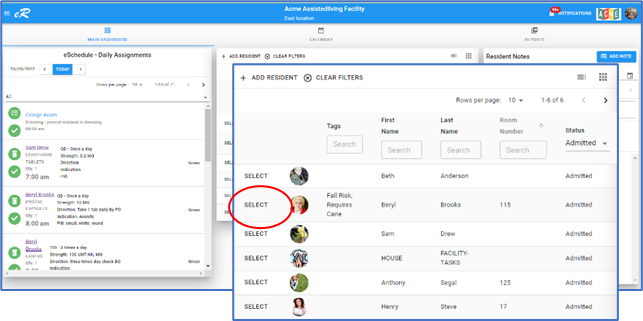
- Begin at the facility dashboard at the resident list to select the resident to work with. Search the resident list for the resident using the filters (i.e. name, status), then click SELECT
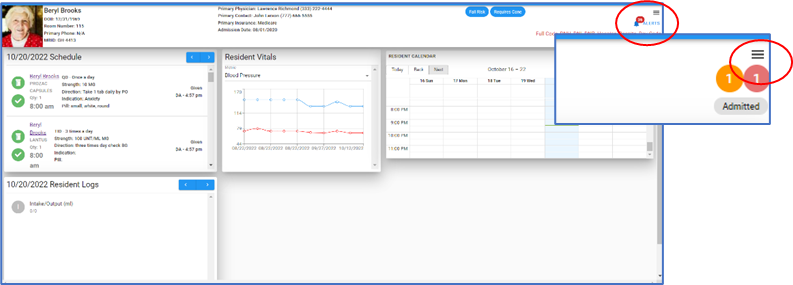
- The resident dashboard opens. Open the menu by clicking the three lines/hamburger icon found at the upper right corner of the screen.
- The menu is divided under four topics: Resident, Orders, eChart, Files.
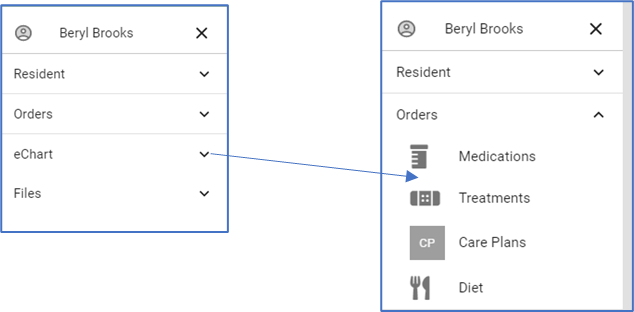
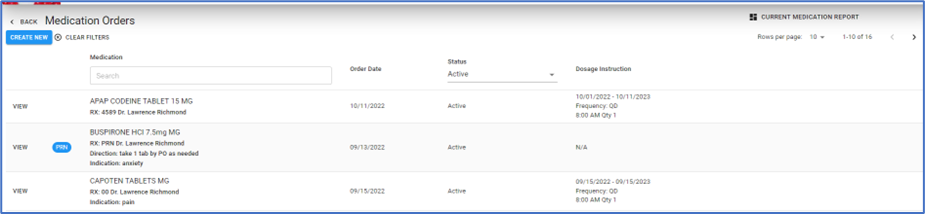
- Select Orders -> Medications. From the list of medication orders, find the order to be put on hold and click ‘View’.
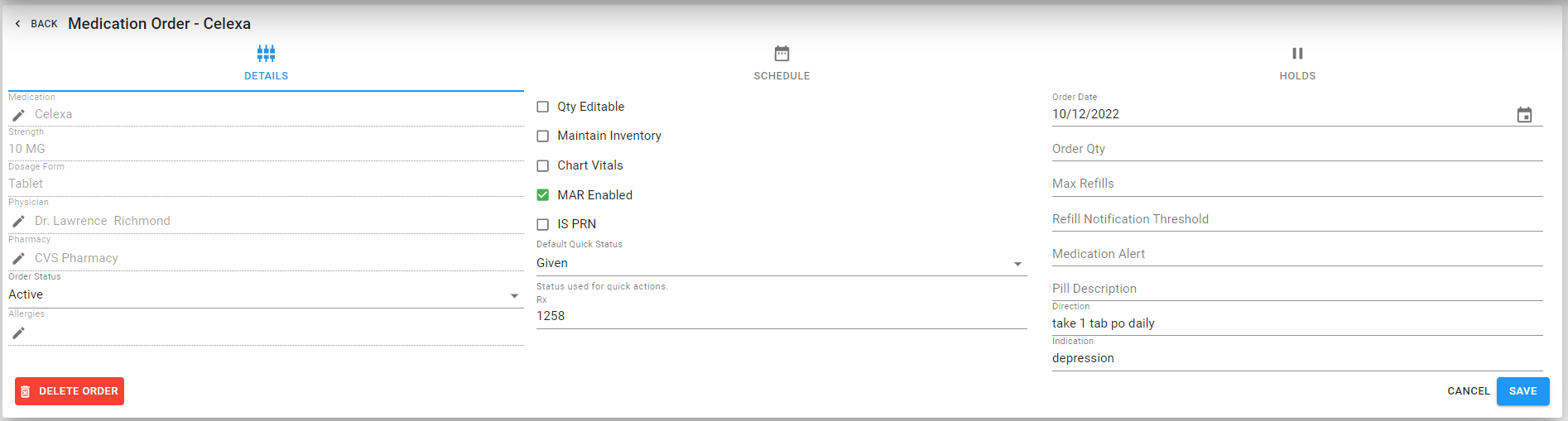
NOTE: that the order screen has three tabs: Details, Schedue, Holds. Click the ‘HOLDS’ tab.
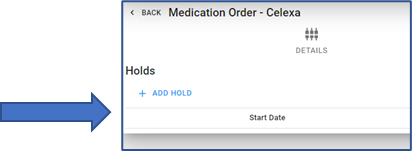
- Click the ‘ADD HOLD’ to create a hold record.
- The screen opens to the Order Hold Dates popup screen. Enter the hold information in the fields:
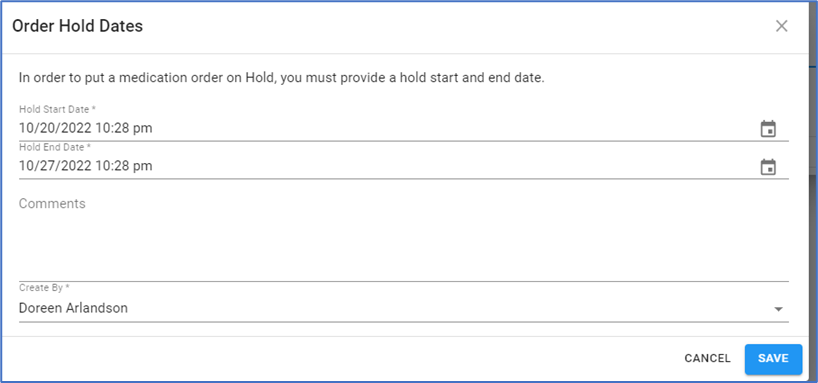
- Enter the ‘hold start date’ and ‘hold end date’ time by opening the calendar, icon at the far right. Important: The date and time of the hold determine how the eMAR charting screen shows the scheduled passing events.
- Enter in the ‘Comments’ the reason for hold for future reference.
- Click SAVE when done.
Medication orders on hold will show on the eMAR charting screen with a tinted banner. Medication orders on hold will be easily visible and will be marked as hold with the initials of the user who set up the hold record.

The MAR will show medication orders on hold with ‘H’ in the boxes.
A medication order that is a PRN and on HOLD will not appear on the list of available PRN orders when charting on the ePRN screens.

How to edit the HOLD record:
A hold can be edited or removed (deleted) – follow the instructions below to edit the HOLD:
- Go to the medication order with the HOLD record and click ‘VIEW’ to open the order record. At the entry screen, click the HOLDS tab.

- Select the HOLD record by clicking on ‘VIEW’. In edit, a HOLD record can be:
- Removed (deleted).
- Hold End Date changed.