
This tutorial will show you have to enter resident medication orders.
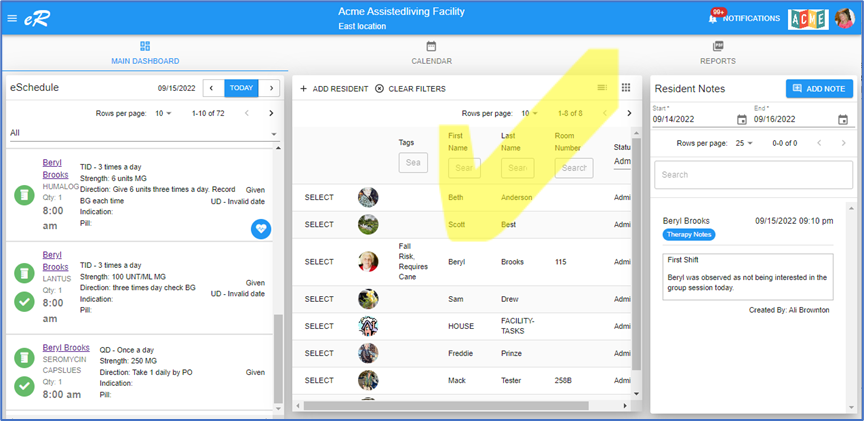
Log into eResidentCare and from the Resident list select the resident that you will be entering medication orders for. From the dashboard, go to the resident list located in the center section
Chose your resident - click SELECT next to the resident.
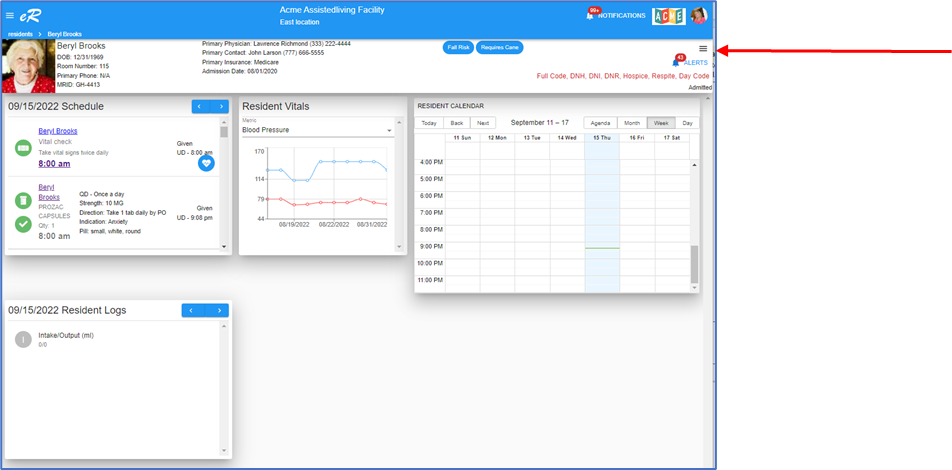
The resident dashboard opens. Open the resident menu.
- The 3 lines, known as a hamburger, when clicked opens the resident menu
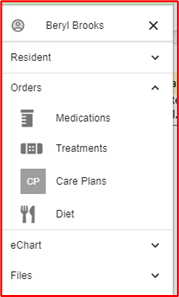
Resident Menu:
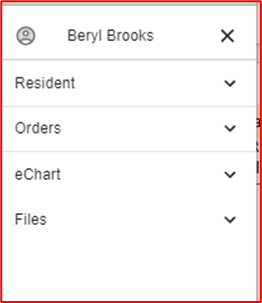
There are 4 menu topics under the resident menu.
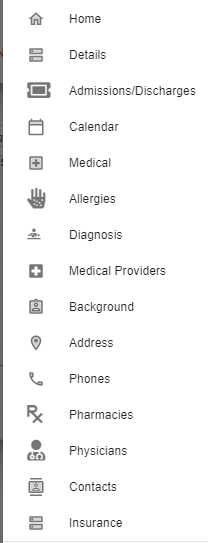
Under the menu Resident the following screens are available. You are being directed to this menu before entering the medication orders so you will be able to assign a primary physician and a pharmacy to the resident. By doing this, the primary physcian and pharamcy will automatically populate in the medication order entry screen. To assign a primary physician, click on the Physicians menu as shown on the list below and also the Pharmacies menu.
Once the primary physician and pharmacy is associated with your resident go to the menu topic Orders, click the down arrow and select Medications.
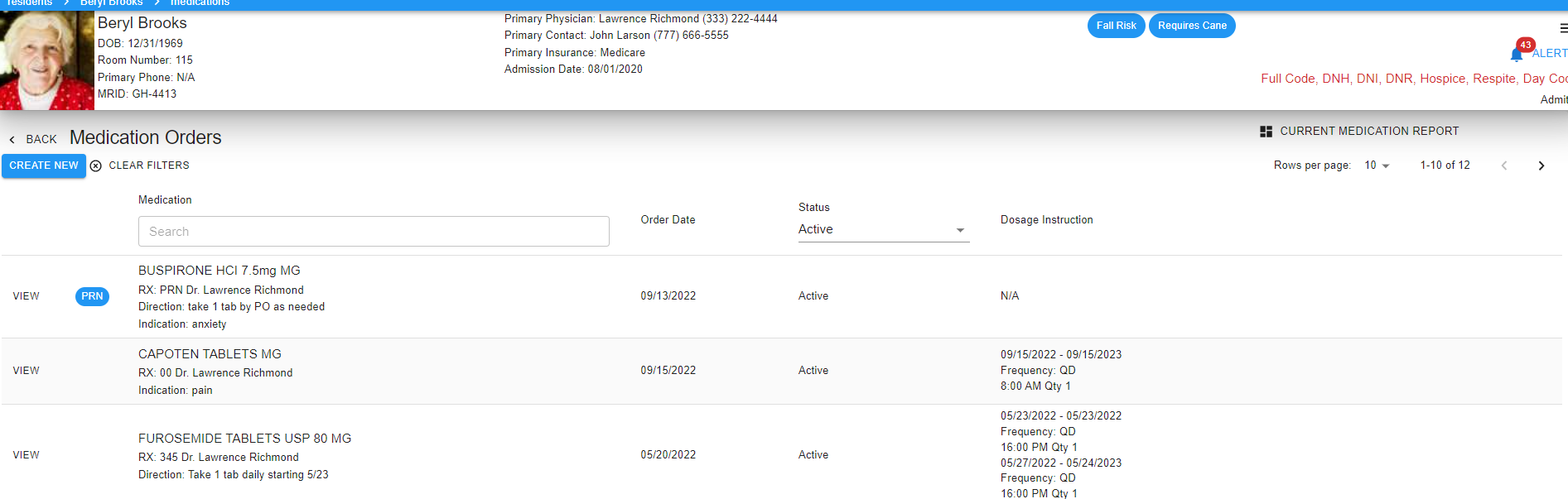
The resident Medication Orders screen opens. This Medication Orders screen is where you will enter all the medication orders for this resident. This screen will also be where you go to discontinue an order
The resident Medication Orders screen opens. This Medication Orders screen is where you will enter all the medication orders for this resident. This screen will also be where you go to discontinue an order.
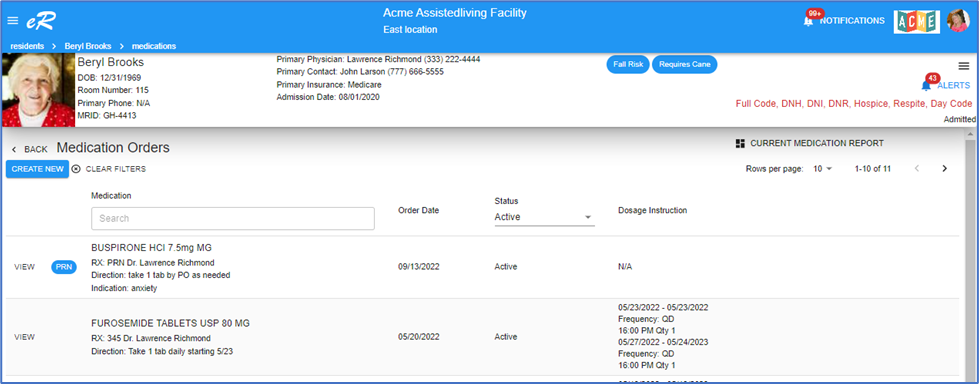
To enter a new order, click the Create New button 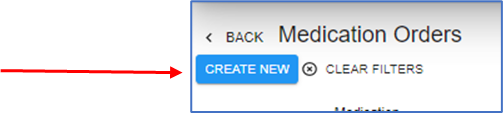
When the Create New Order screen opens, the order is divided into six sections. At the top of the screen, a banner displays each section and its completion status.
Fields marked with an asterisk (*) are required.
As you complete each section, the status next to the section name will display either:
- Ready – All required fields for that section have been completed.
- Needs Input – One or more required fields are missing.
It is important to watch these status indicators as you work through the order. If a section displays Needs Input, return to that section and complete the required information before saving.
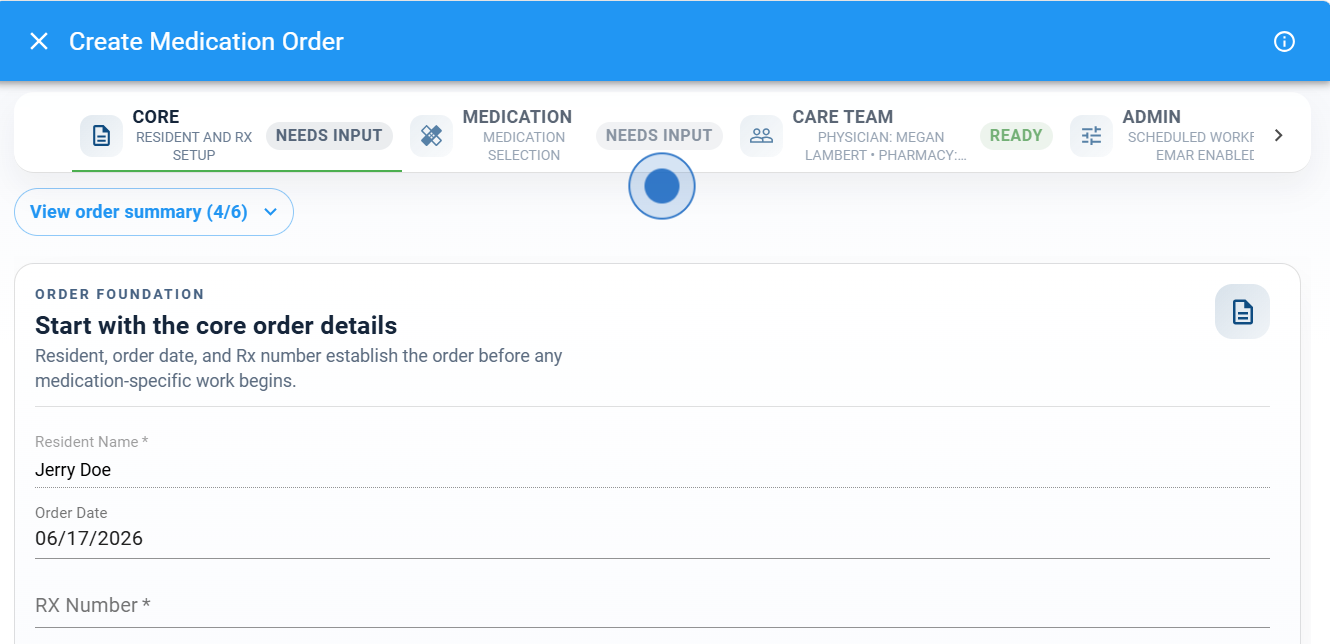
1. Core
The Core section contains the basic information for the order, including:
- Resident Name
- Medication Order Date
- RX Number
Complete all required fields before continuing.
2. Medication
The Medication section is where you select the medication.
- Click the Find icon to open the Medication Search table.
- Search for the medication and select the correct entry.
- Verify the medication strength and dosage form before selecting it.
- Click Continue to proceed.
Selecting the correct medication ensures that the order contains accurate medication details.
3. Care Team
The Care Team section contains:
- Physician
- Pharmacy
If a physician and pharmacy have already been assigned on the resident's profile, these fields will automatically populate. Verify the information and make changes if needed.
4. Admin
The Admin section defines how the medication will be administered and charted.
Available options include:
PRN
Indicates whether the medication is administered as needed.
Enable Inventory
Tracks medication inventory and quantity remaining.
eMAR Enabled
By default, medication orders are enabled for eMAR and will appear on the medication charting screen.
Order Classification
Used to identify special classifications such as controlled substances or narcotics.
Quick Chart Defaults
Determines the default status when staff chart medication administration.
By default, clicking the medication circle automatically saves the administration as Given.
Other default statuses may be selected from the dropdown, such as:
- Self-Administered
Vital Charting
Select any vital signs that must be recorded before administering the medication.
Examples include:
- Blood Pressure
- Pulse
- Blood Glucose
When required vitals are configured, staff must use the pencil icon to enter the vital information and select a status. The Quick Chart default will not apply.
5. Schedule
The Schedule section defines when and how often the medication will be administered.
By default, a new medication order includes:
- Frequency: QD (Once Daily)
- Time: 8:00 AM
- Quantity Given: 1
To modify the schedule:
- Edit the schedule entry.
- Select the appropriate frequency.
- Enter the start date.
- Enter the end date (if applicable).
- Specify the quantity given.
- Set the administration time(s).
Creating Past Events
If the medication start date is in the past and you want all scheduled passes for the day to appear immediately, answer Yes to:
"Do you want to create events scheduled in the past?"
This will generate the scheduled medication events that would have already occurred.
6. Clinical
The Clinical section contains additional medication information, including:
- Indication
- Directions
- Pill Description
- Alerts
- Allergies
Complete any applicable clinical information before saving the order.
Saving the Order
Once all six sections display Ready, the Save button becomes enabled.
Review the order for accuracy and click Save to create the medication order.
Additional Information:
The Passing times field by default shows frequency of QD - once a day. If the frequency QD is correct by the passing time is wrong, click the Edit pencil
To change the frequency to something other than QD, click on the line item to open the list of frequencies and highlight the correct one.
to change the passing times click on the time to open the clock.
Edit the quantity and when finished click Save button.
The following is a list of all fields and the description of each field. Review each field and enter per your information. Once all the required fields are filled you will be able to Save your order. See below for what to do if you do not find the medication name and strength in the medication table.
Field | Description |
Resident Name | Required field, by default the resident name will automatically be populated. |
Order Date | Optional field, by default the current date is shown. The date in this field is the date when resident was prescribed the order. Recommend entering the last prescribed order date if you are not sure. , you can change the date to show date of order |
RX Number | Required. If you do not use Rx numbers, you still need to enter a number or enter 0. (Example if you are entering 10 medication orders, number the orders 1 through 10 and use that number to enter in the RX Number.) |
Indication | Optional field. Displays on the eMar and MAR. Indication is what the medication order is being subscribed for, for example if the medication order is to help with constipation, enter ‘constipation’ in this field. |
Direction | Optional field. Displays on eMar charting screen, the MAR and printed MAR. (Sample directions ‘Take 1 tab by PO daily’.) |
Pill Description | Optional field shows on the eMar charting screen. (Example describing a pill ‘white, round, small’.) |
Alerts | Optional field shows on the eMar charting screen, the MAR and printed MAR. (Example of an alert ‘Do not exceed 400 mg in 12 hours’, Give with 4 oz. water’, or enter the sliding scale instructions for insulin) |
Allergies | Optional field. Click the + plus to show the list to select from (does not show on eMar screen. |
Switch is PRN | Required if the medication order is a PRN. A PRN order does not have a frequency, clicking PRN will hide the passing times section hidden. |
Switch Chart on Vitals | Optional field. Click to Turn the switch to green if you want staff to perform a vital check before passing the medication. This will show on the eMar and will require staff to enter a value before charting a given. When the switch is on a drop down list of vitals opens, check the vitals that are to be taken. |
Switch eMar Enabled | Turn on this switch to show on eMar |
Medication | Required. Click on the search glass at the Medication field to open the medication table.
|
Field | Description |
Name | Required. Recommend typing the name in capitalized letters |
Generic Name | Optional |
NDC Code | Optional. Recommend leaving this blank |
Strength | Enter a number (i.e., 20) |
Unit | Use the drop down to select a unit (i.e., Mg for milligram) |
Dosage Form | Use the drop down to select a dosage form (i.e., Tablet) |
Route | Use dropdown to select route |
Is Supply | Optional Field |
Is Narcotic | Optional Field |
|
|
Searching for a medication from the Medication Table: Clear filter and type in the medication name in the Name field. You can also drill down the list further by entering a strength (example 20 for 20 mg) , use the fields Name, Strength, these are the easiest to use to find the medication.
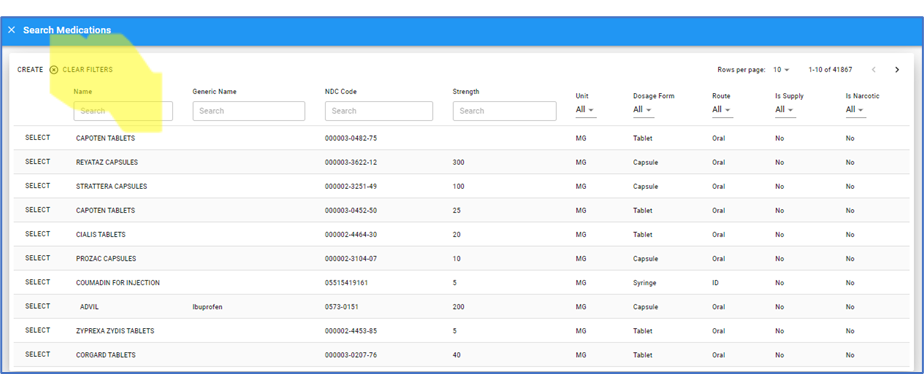
Adding a medication record to the Medication Table
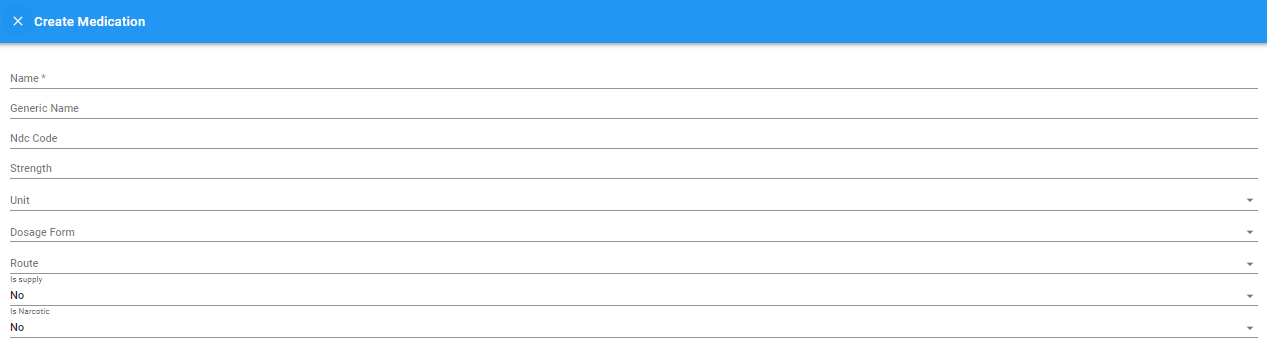
If you do not find the medication, click CREATE to enter a new medication record. Be sure to save once you have created the record. The save button will be at the bottom right corner.
The resident medication orders will show as a list.
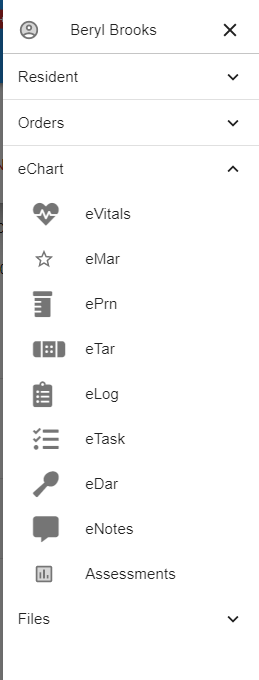
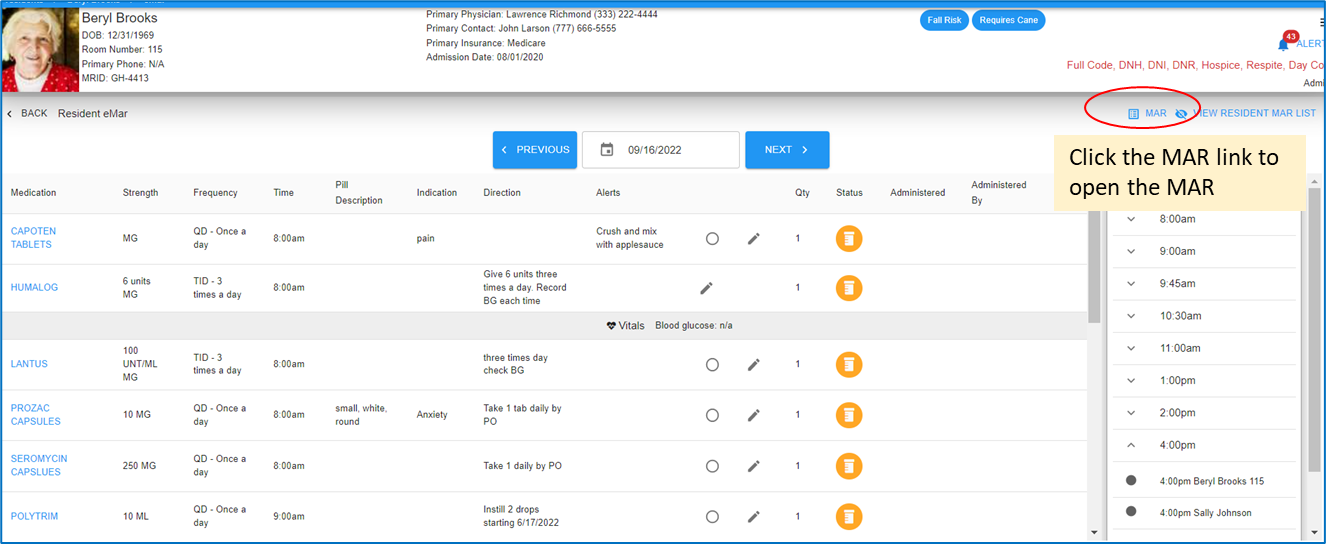
To view how the MAR will look - go to the eChart menu and select eMar which is the daily charting screen, on this screen is a link 'MAR' that will open to the MAR. The MAR can be printed at this screen.
End of tutorial.....thank you!