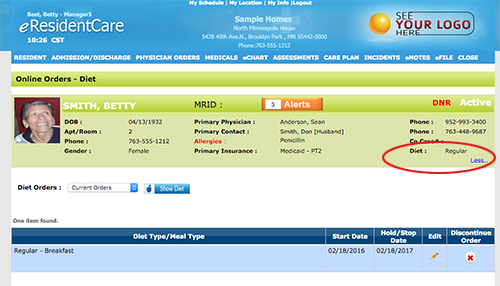
Follow these instructions to create a new or edit diet order
- From the Home page select the resident you would like to add the diet order to.
Find PHYSICIANS ORDERS from the menu bar and choose 'Diet' from the
dropdown (as shown below).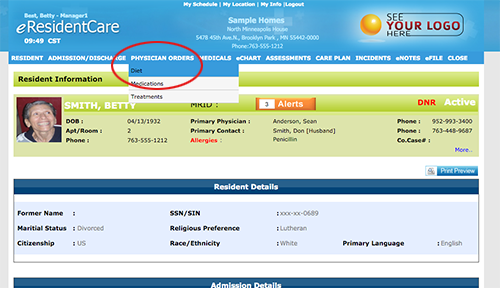
-
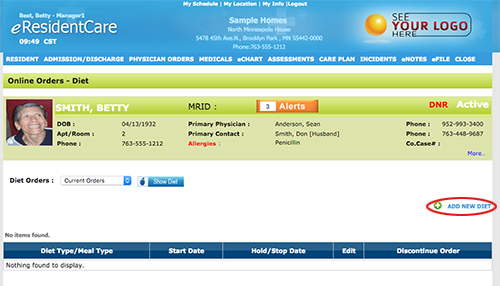
To enter a new Diet Order click on the 'Add New Diet' icon.
To edit an existing diet order click on the edit icon as shown below.
Note: You can aslo DC your oder on this screen by clicking on the red X under
Discontinue Order.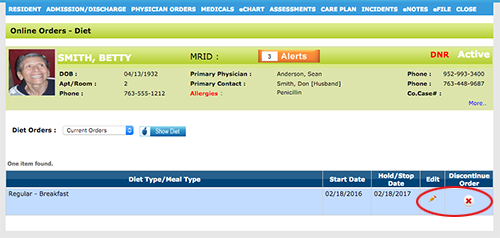
-
To schedule meals click on 'Add New Schedule' adjacent to the title Diet Schedule.
The screen expands by adding the different meals; Breakfast, Lunch, Dinner, Other.
Other can be used for snacks.
Note: There is no limit to the number of meals you can schedule.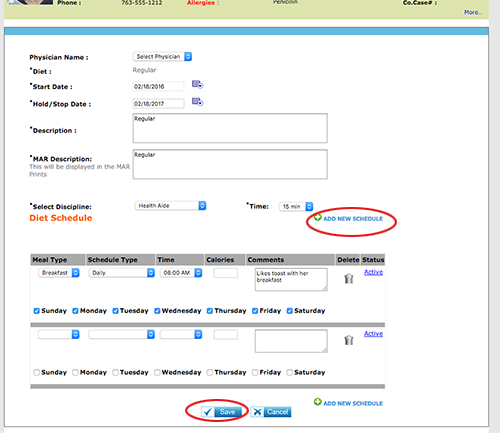
Tip: For each different meal you are scheduling for you do not need to click the Save button
until you are done entering all meals. Start by adding the first meal, then click the Add
'New Schedule' and add the next meal, continue on until all meals and snacks are entered.
To save click the Save button. Once you click the save button you will be directed out of this
screen and to the main page under Diet Orders. Note: The diet will now show on the header. Just click on more… to expand the header box.