There are three ways to print your eTasks; daily report, monthly log, or from the report center.
To print your daily report:
- Go to the eSchedule and click on the 'Filter' icon located at the top left.
- Select your view options. In the example below 'eTask' was selected for the service and the resident.
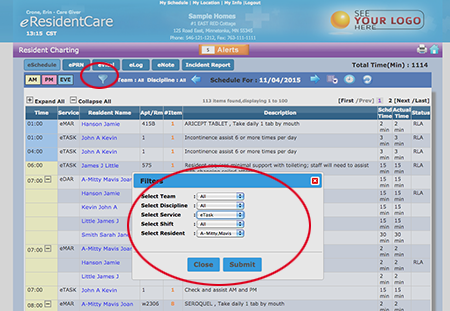
Click 'Submit'.
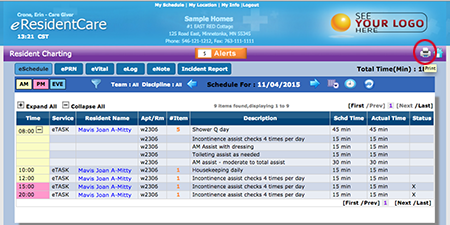
Now your eSchedule should display only your filter options.
-
Click the printer icon on the top right. See image below.
Select the location you would like to save your pdf and name it to the name of your choice.
-
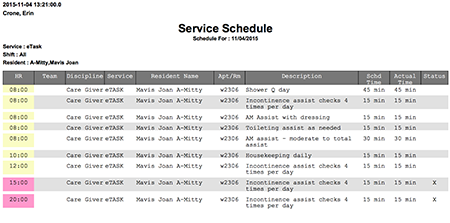
Open the file you just saved and print it to your printer.
- Choose the resident you would like to print the monthly eTask log on.
- Go to 'eChart' and select 'eTask'
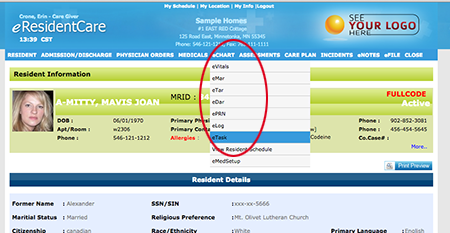
-
Click on 'Log' located on the right.
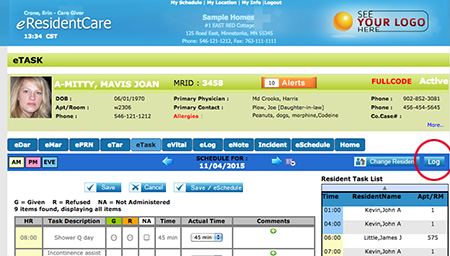
-
The current month of your residents log will display. You can change the month and year
of the log by selecting it in the dropdowns the clicking the refresh icon. -
Click the printer icon on the top right. See image below.
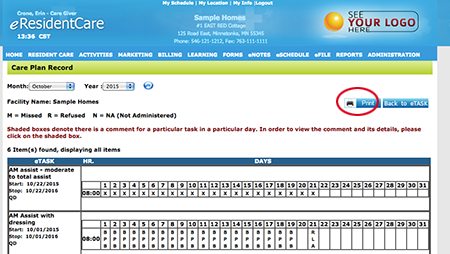
-
Select the location you would like to save your pdf and name it to the name of your choice.
-
Open the file you just saved and print it to your printer.
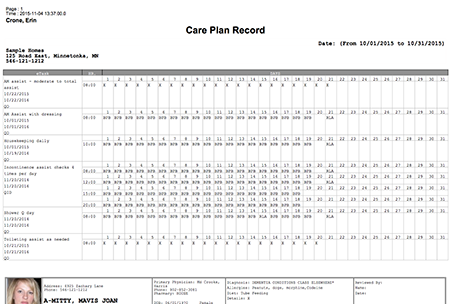
From The Report Center:
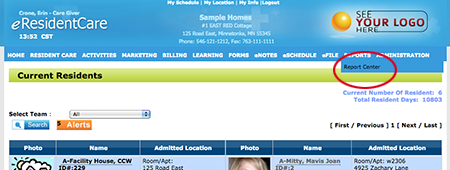
- Select the 'Report Center' from the mail menu.
-
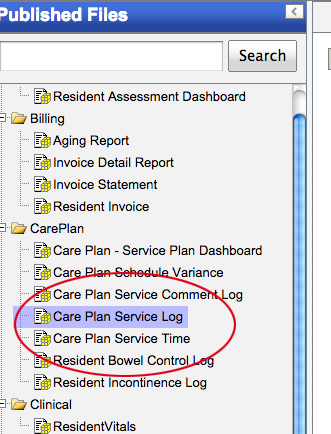
Select the 'Care Plan Service Log'
-
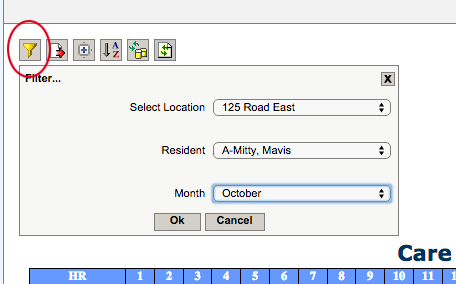
Click on the 'Filter Icon' and choose the Location, Resident and month then click 'Ok'.
-
Your 'Care Plan Service Log' will be displayed.
-
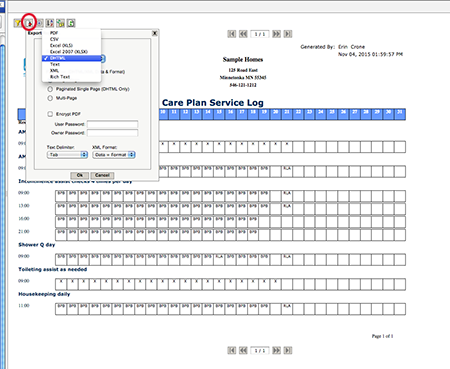
To print you will select the Export icon (as shown in the image below).
By default DHTML is selected. This option will open 'Care Plan Service Log' in a print ready view in a separate window
where you can print to your printer.