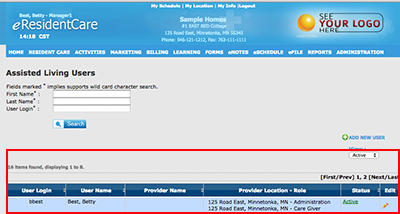
Follow theses steps to change permission levels/roles or add/remove a location of your users:
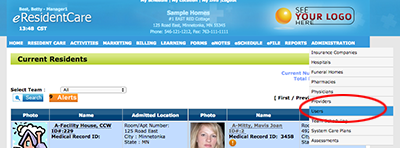
- Click on the 'Administration' on the menubar and choose 'Users'.
-
Next find the User you would like to edit and click on the 'Edit' Icon.
NOTE: If this is a new user you will need to click on the 'ADD NEW USER'.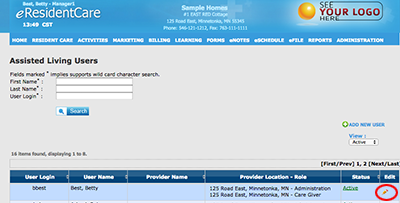
-
Find the '*Provider' field and select the Permission role for each location you want the user to have.
HINT: To select more then one location click on the 'Ctrl' key and click location/role with your mouse on a PC. On a Mac it is the 'command' key.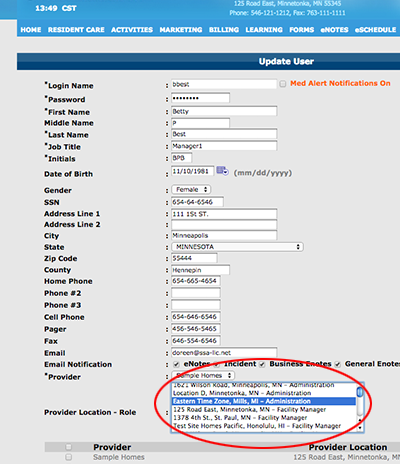
-
After you have all f the permission roles/locations selected click 'Save'.
You will now see the user and the all of the 'Provider Location - Role' listed.