
- First goto Physicians Orders > Treatments. Then click on the "ADD" button to create a new treatment.

-
Click on the "Search" to search for the treatment.

-
Either enter the treatment name (or at least the first 3 characters) and click "Search". Or click "Add New Treatment".

-
If you are creating a new treatment, enter in the information in each field for Treatment Code, Treatment Name, and Treatment Descriptions. Then click "Save".

-
Click on the Treatment you just created and you will be directed back to the order form. Enter in the information in each field.

-
Your new treatment task will now show in Physicians Orders > Treatments. You can edit the order by clicking on the 'Edit' icon or delete it by clicking the 'Delete' icon.

-
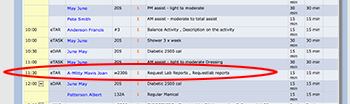
This order is now in eTar and eSchedule.

eSchedule
How do I create a Treatment Task? Print
Modified on: Wed, 10 Sep, 2014 at 12:18 PM
Did you find it helpful? Yes No
Send feedbackSorry we couldn't be helpful. Help us improve this article with your feedback.