After you have created your Invoice in Billing, you will need to exit out of Billing and go to the 'Report Center' to print your invoice.
Follow these steps for instruction on how to print your invoice:
- If you are in Billing click the 'Home' button to exit out of Billing and get to the main menu.

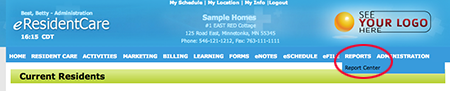
- At the Main Menu, click on 'Reports' then 'Report Center'.
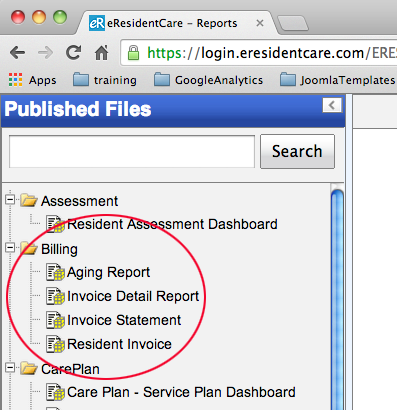
- Once in the Report Center you will find the Reports on the left side. Find 'Billing' and select the report you would like to print. To print a residents invoice select 'Resident Invoice'.
-
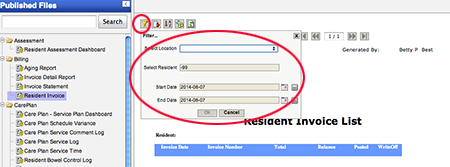
Next you will need to click on the 'Filter' icon on the top left (circled in the example below). For 'Resident Invoice' filter you need to select the location, the resident, and the dates of the invoices you want. Click 'OK'.
-
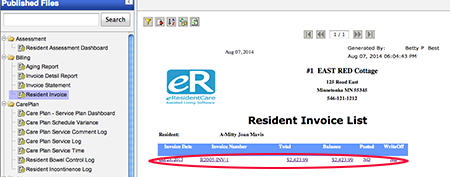
You should now see a list of all of the invoices for the resident and the dates you selected in the filter. In the example below there is only one invoice but you may have several more showing in a list. To open an Invoice click on any of the links as shown circled in the example below.
-
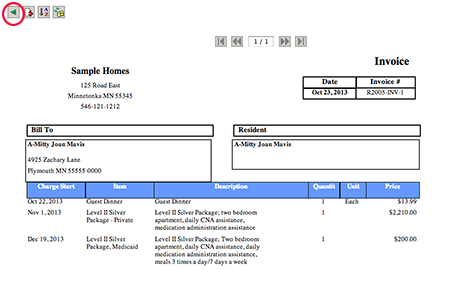
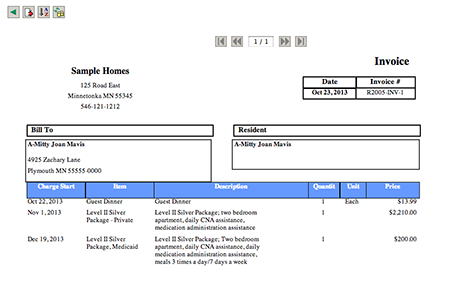
Your invoice will look similar to the example below.
-
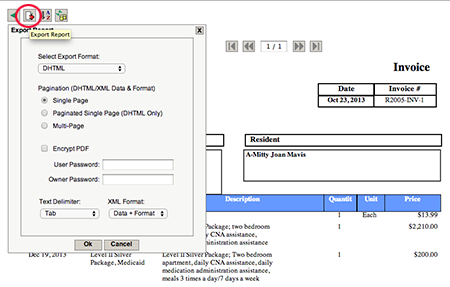
Next click 'Export'. As shown circled in the example below.
-
Next choose the format you would like the report in. 'DHTML' is selected as default. click 'OK' and the invoice will open in a new window where you can print your invoice. You can choose another format if you prefer.
NOTE: If you choose a different format, you will be asked to choose the location on your computer where you want to save the file. To print the invoice you will then need to locate that file, open it in the proper application and then print the invoice.
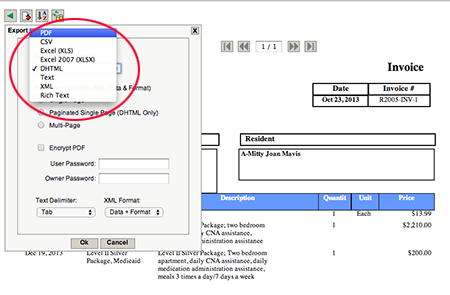
If you have additional invoices that are in the 'Resident Invoice List' you created in steps 4-5. You can go back to that list by clicking on the green back arrow icon as shown in the example below.