
Follow these steps to create a ‘Team Schedule’:
1. Goto ‘Administration’ on the menu bar then select ‘Team Scheduling’.
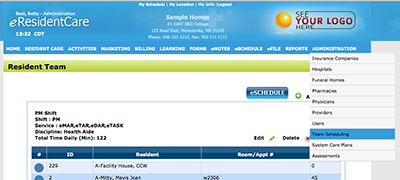
2. To create a new team click on the green plus icon to Add New Team.

3. Enter the Team Name of your choice.
4. Select a Discipline.
5. Select the Services. You can select one or multiple services for each team created.
6. Select the Shift that the Team will be in.
7. Click on Get Residents. Then choose the Residents you want to be included in this team that you are creating.
8. Click on Save at the bottom of the form.
9. You can view the Schedule with the new Team by clicking on the eSchedule.

Tip:
After you have created your teams, if you want to move a resident to a different team you can do so by click, drag, and dropping. Note that you can only move the resident to a different team that has the same services and shift as that resident is currently in. You can not move a resident from an AM to a PM team. You also can not move a resident that is scheduled for eMar service to a team that is scheduled for eTask unless the eMar service is also included in that team.
You can create as many Teams as you need.