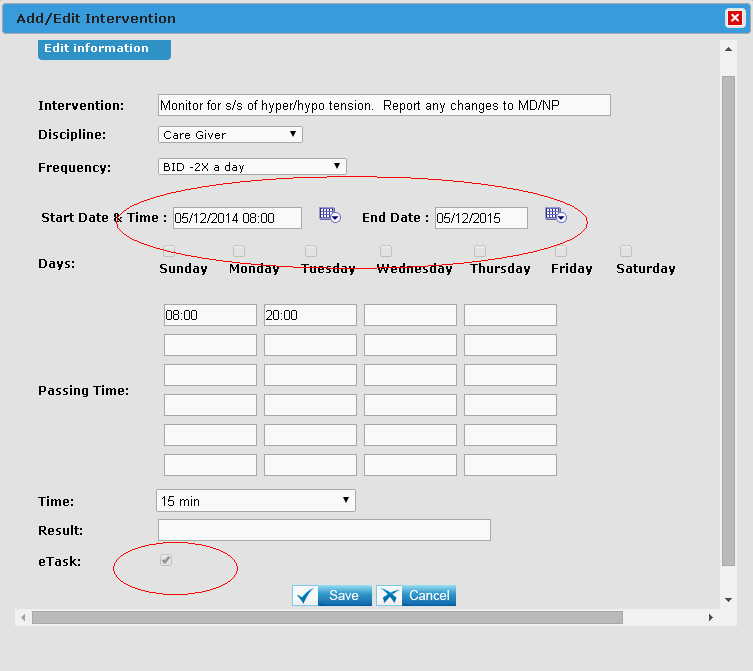
Follow these steps:
-
Step 1: Select the resident you want to schedule tasks for and open their record.
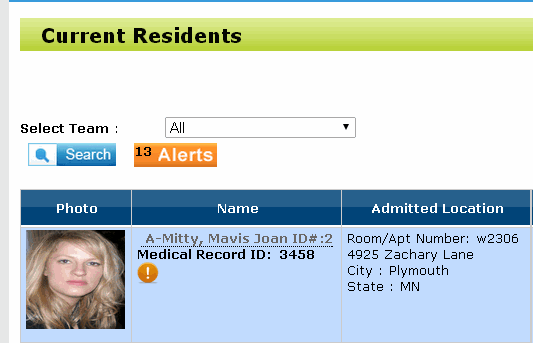
- Open 'Care Plan' under the menu Care Plan.
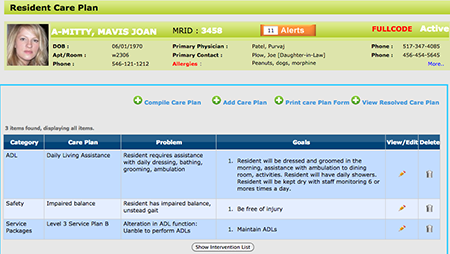
You can view the details of each care plan and see which have been assigned to eTask by clicking the 'Show Interventions List' to expand (To hide this list click 'Hide Intervention List').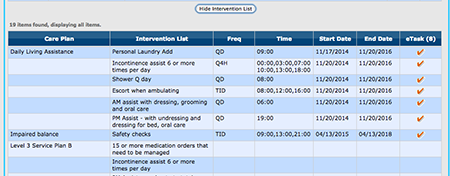
- If your resident has any care plans assigned to them, select the one you want to schedule tasks from. (No care plans? see 'How to build a care plan')
-
Care Plans have 'Problems', 'Goals' and 'Interventions', the 'Interventions' when scheduled become an eTASK. To schedule an 'Intervention', select it and click the pencil icon, this will open the 'Intervention'.
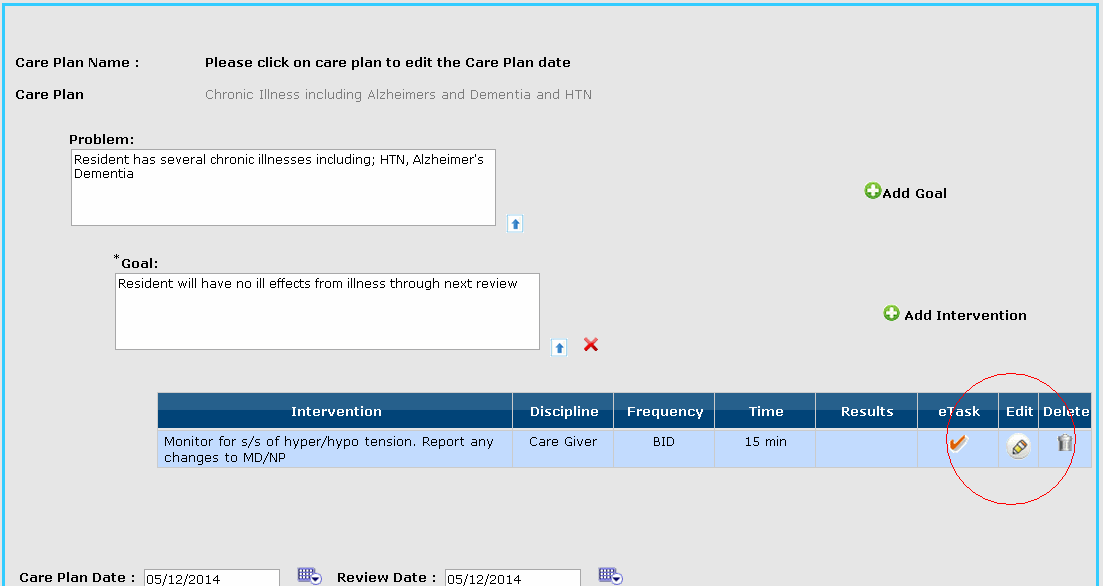
- Edit the information; select the discipline that should do this task, how often should the task be performed and at what time of the day should this task be done. Remember to put in a start date and time, and an end date, as this will tell the system to show on the eTASK charting screen. At the bottom of the screen there is another field called 'Time'. This is telling the discipline how long this task should take and will show this on the eTASK charting screen. IMPORTANT: be sure to check the eTask box at the bottom of the screen and the 'Save' button. If either one of these is left undone, the task will not show on the eTASK charting screen.